
Shadcn UI Application Shell Blocks, Sections & Components
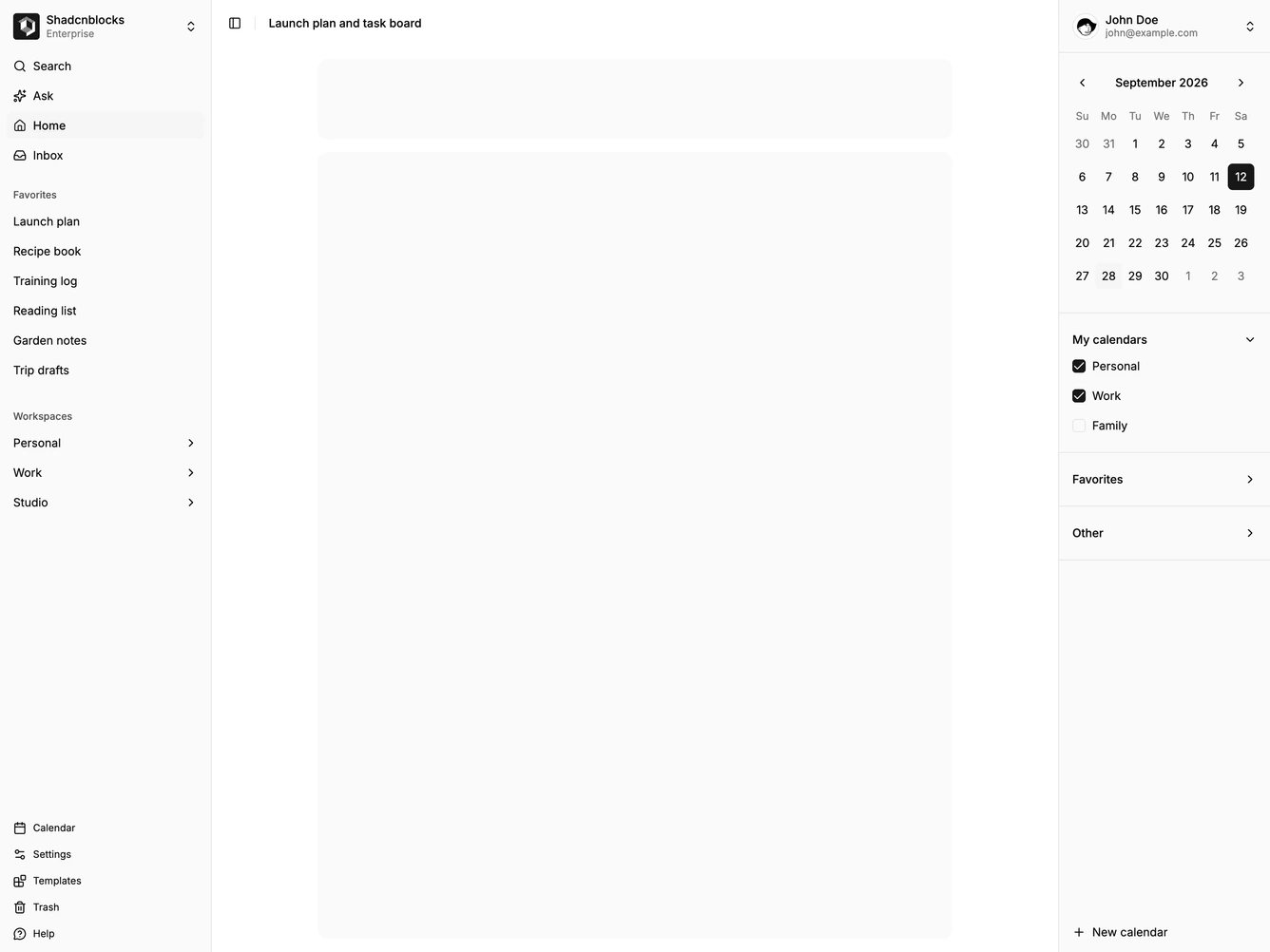
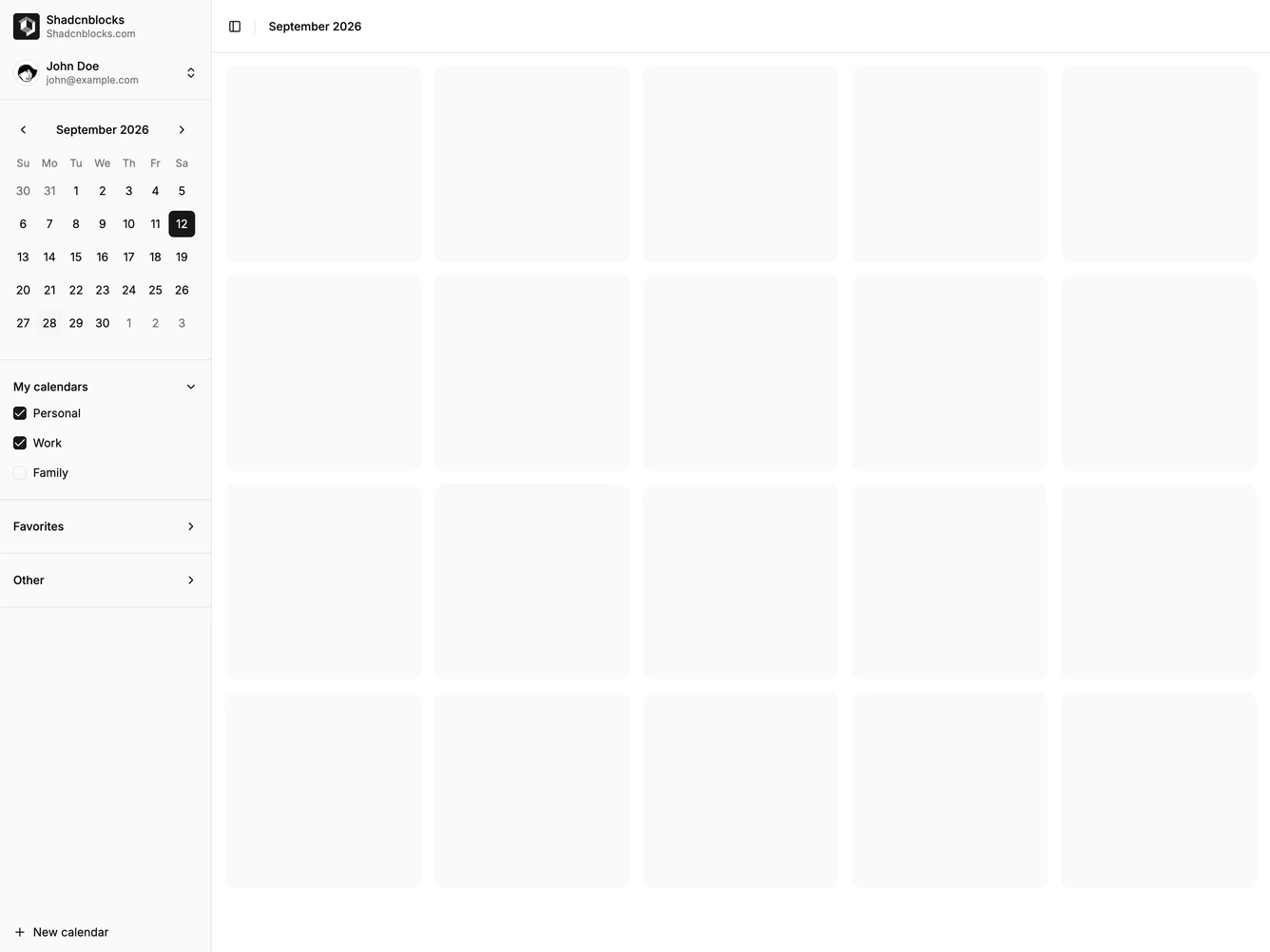
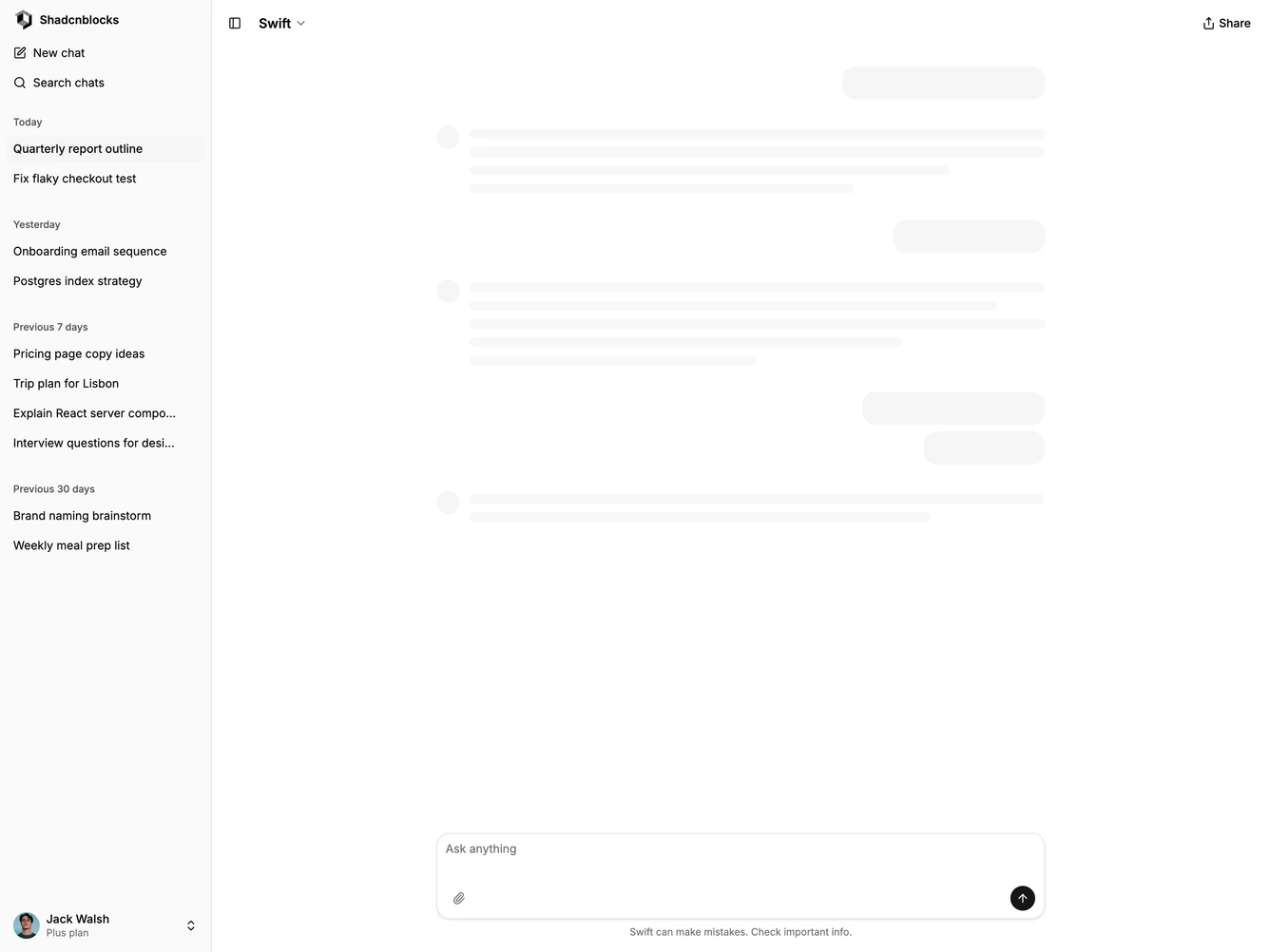
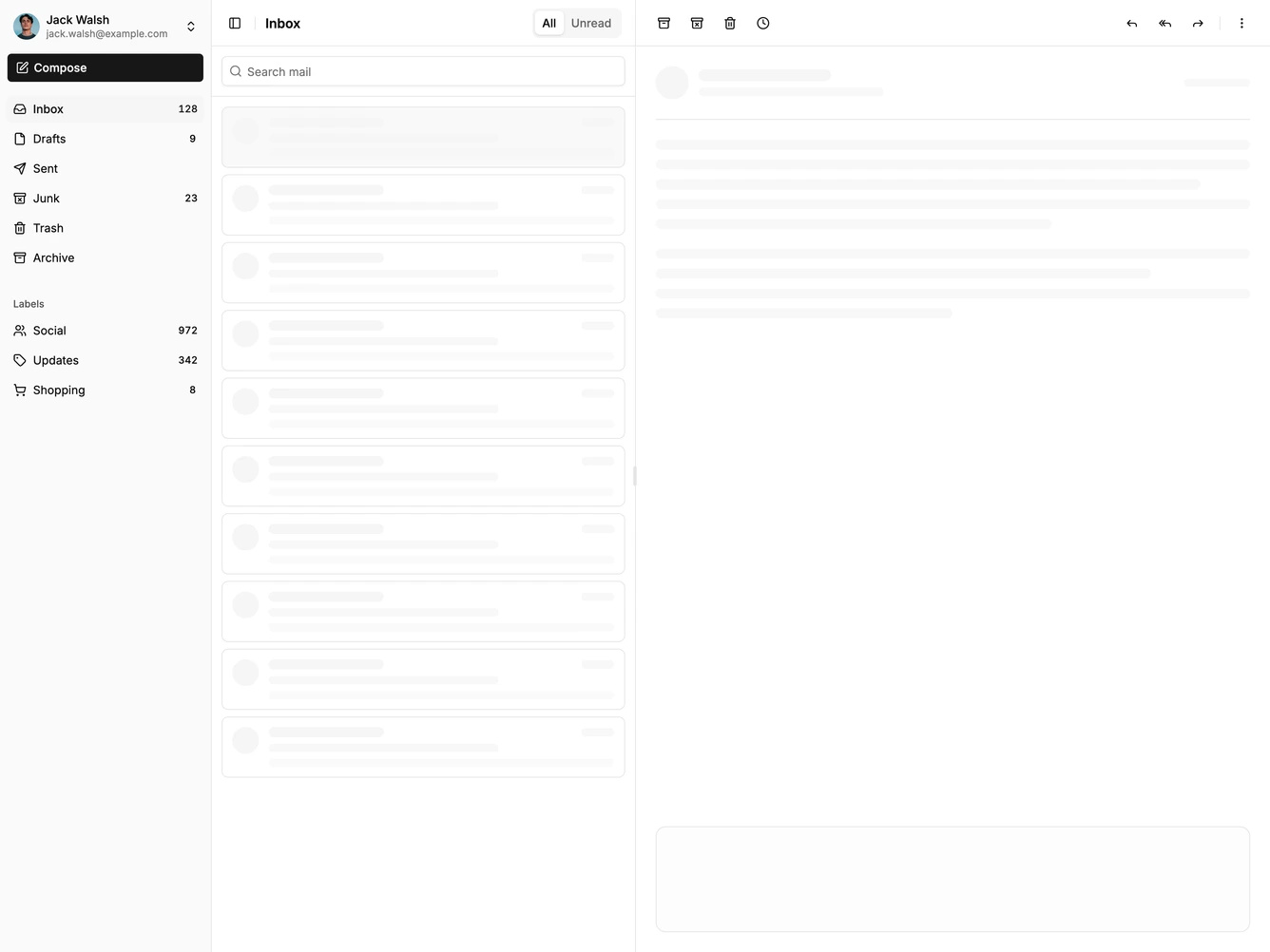
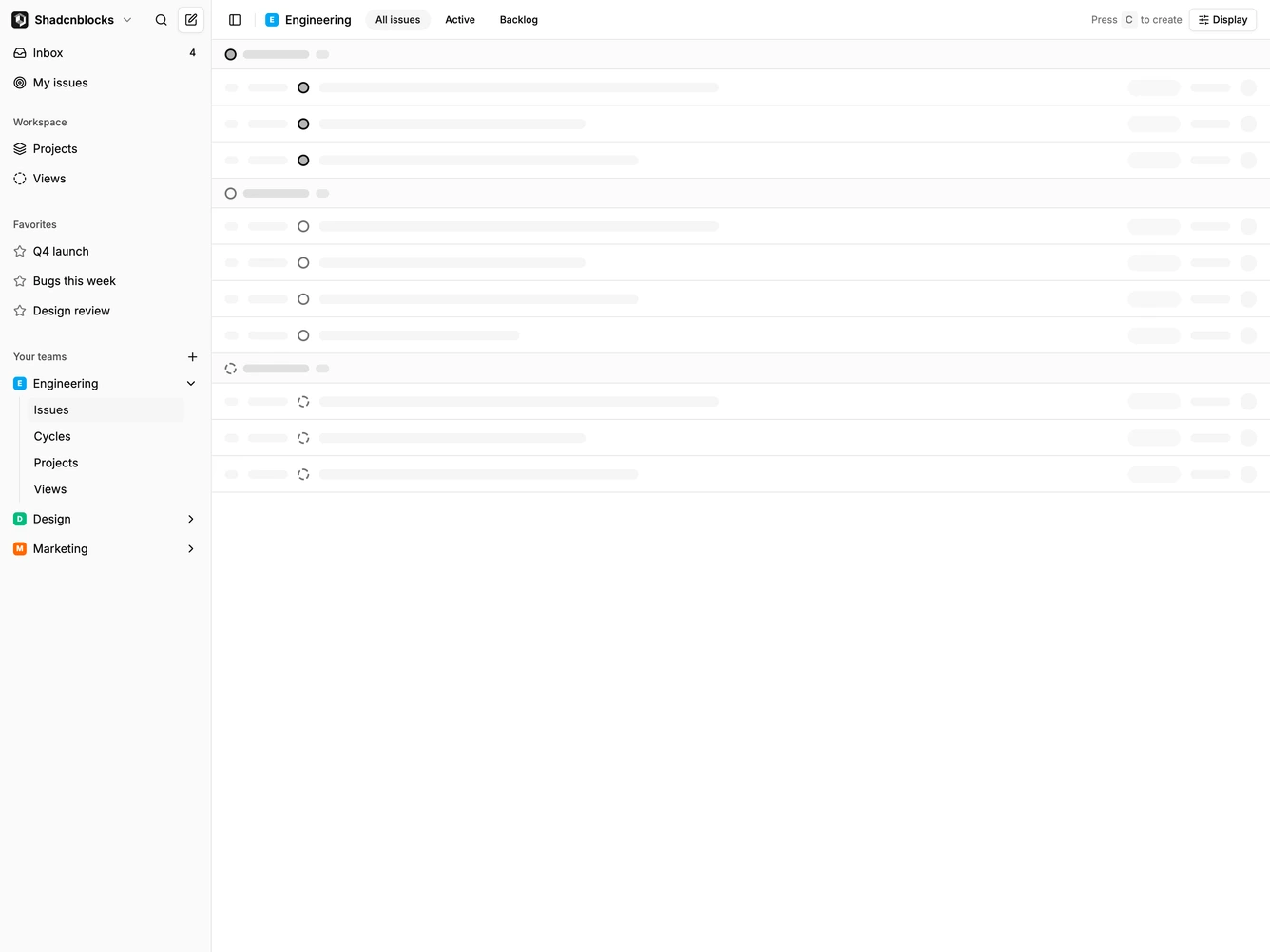
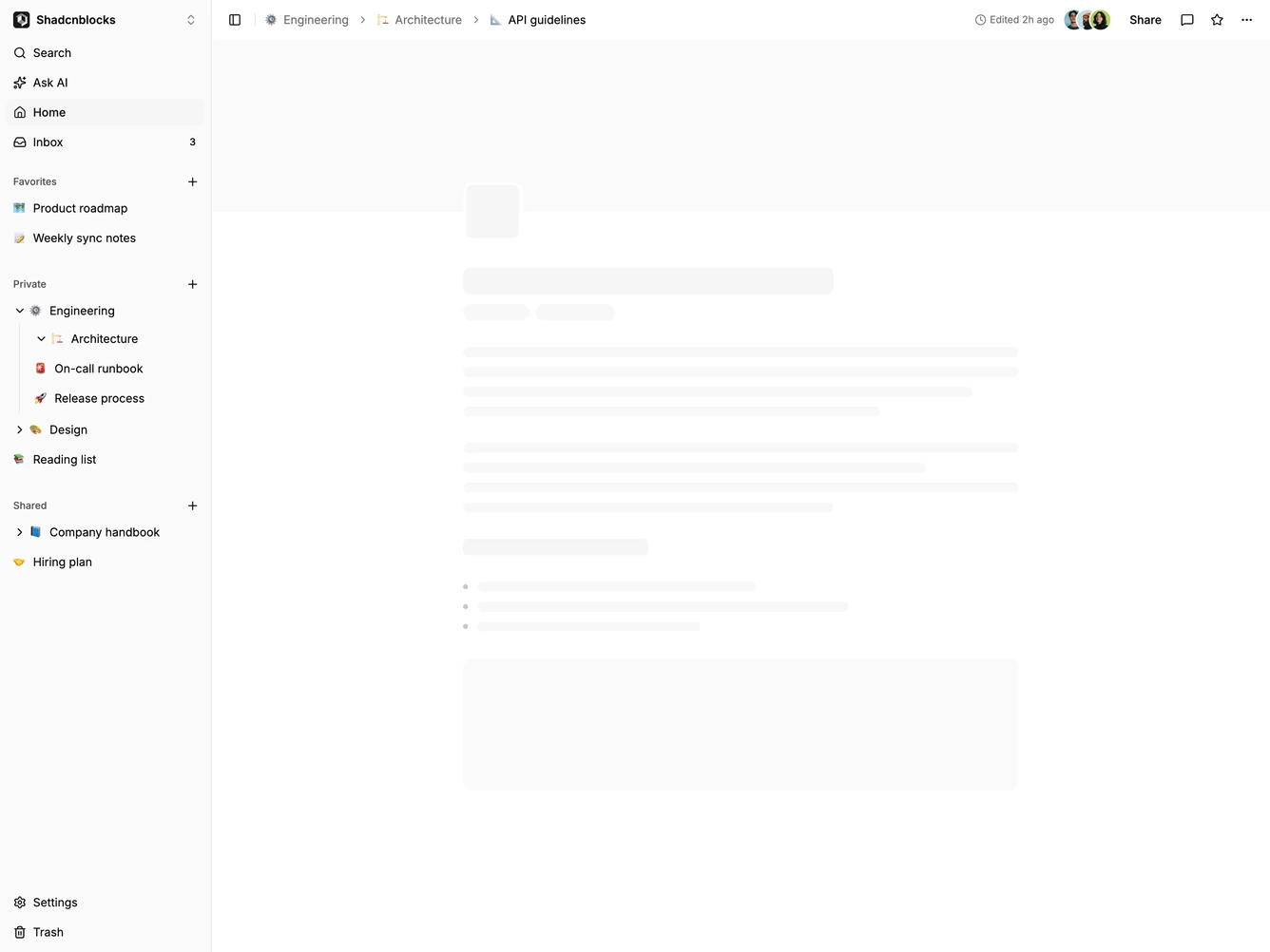
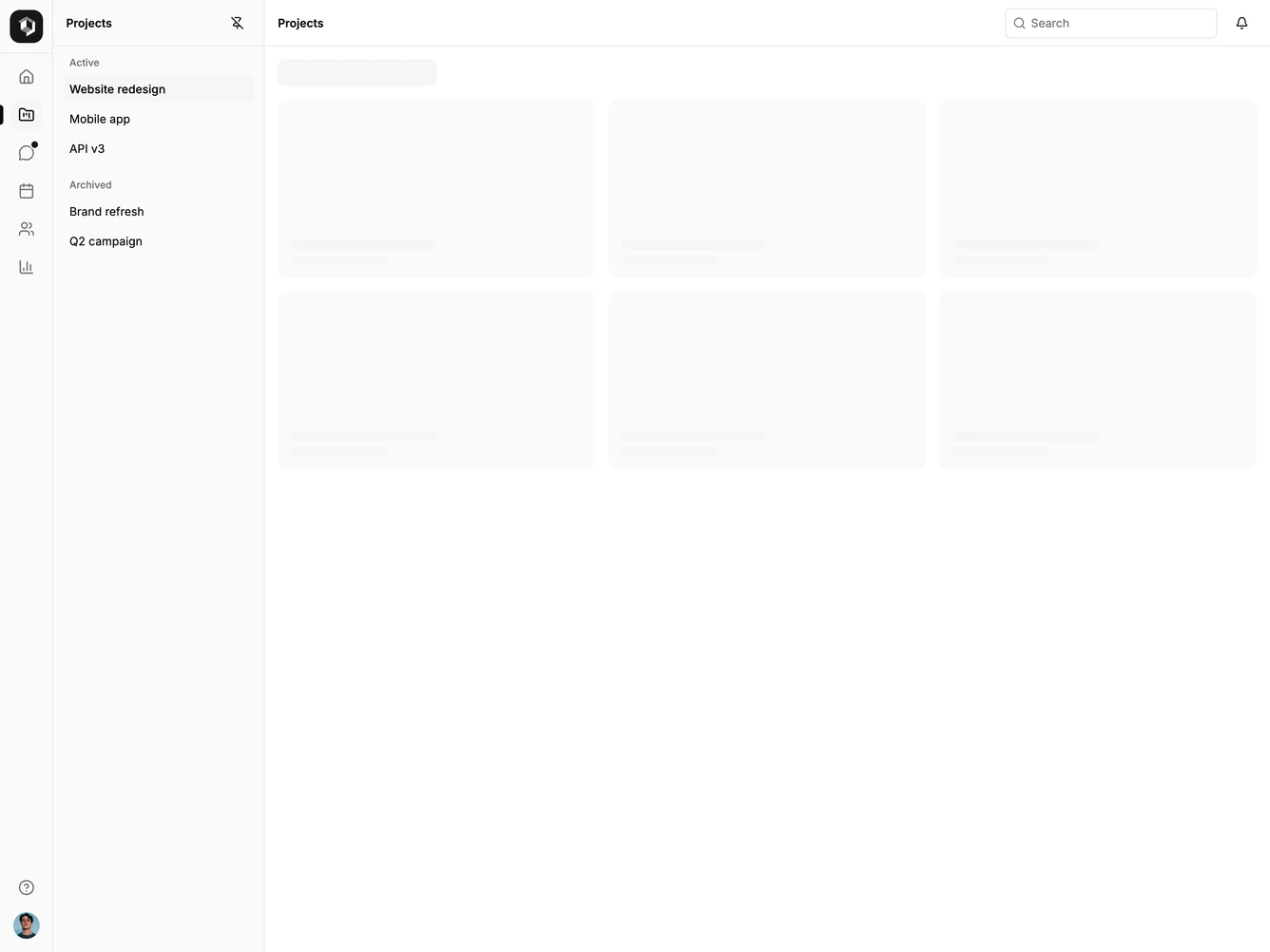
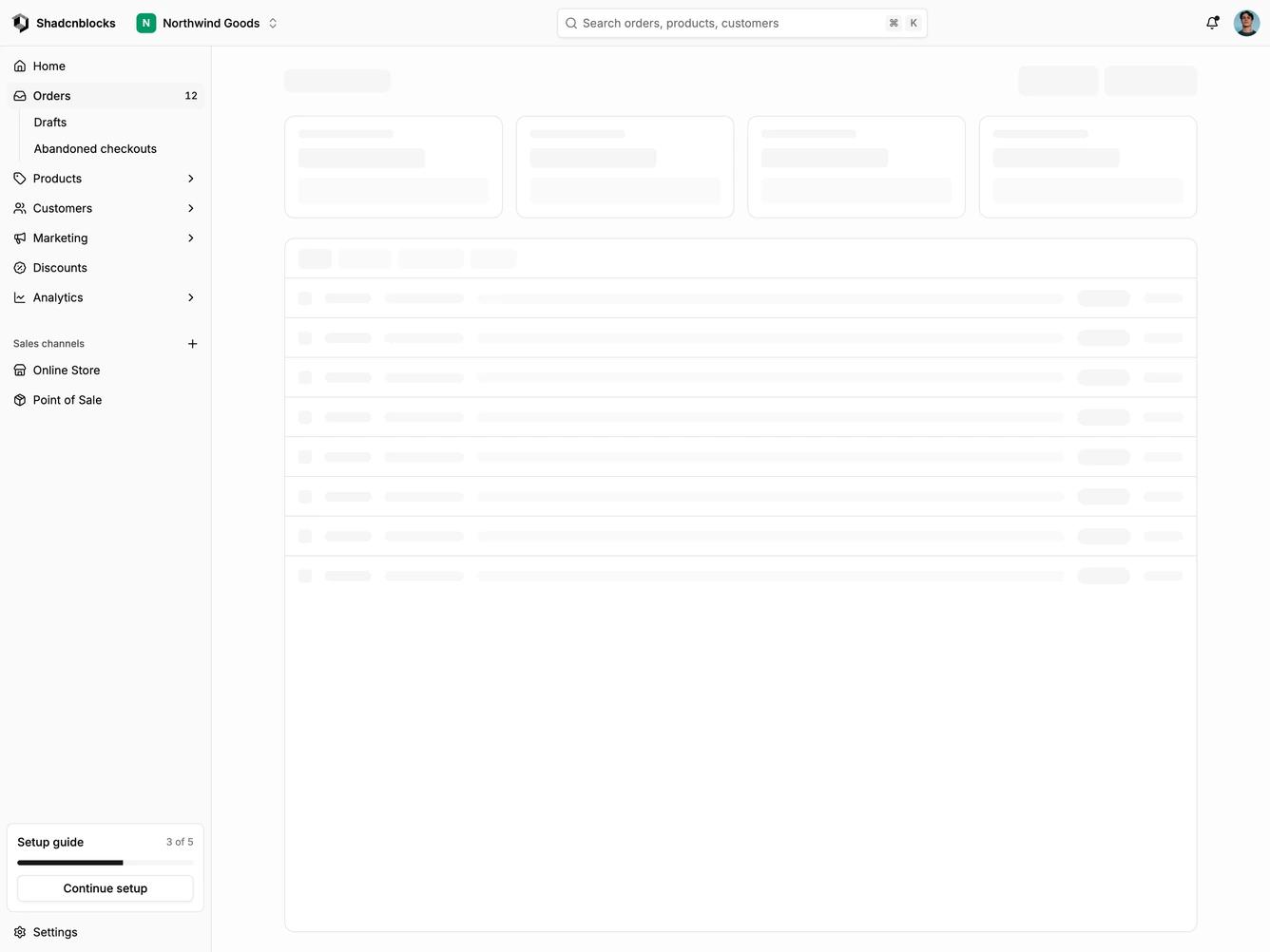
Application Shell blocks are dedicated sections of a webpage focused on application shell content. They appear on landing pages, product pages, and marketing sites as key elements that communicate value and drive user engagement.
Each block is a self-contained React component which you can copy/paste the code or install via the shadcn CLI. You own the code and can modify however you like, or us AI and LLMS to quickly change the design.
Our application shell blocks combine headlines, supporting text, images, icons, CTA buttons, and responsive layouts. Each block is designed with clear visual hierarchy and consistent spacing to integrate seamlessly into any page structure.
Choosing the Right Application Shell Section
Different goals call for different application shell sections. We’ve organized our application shell blocks into subgroups so you can find the right layout for your use case:
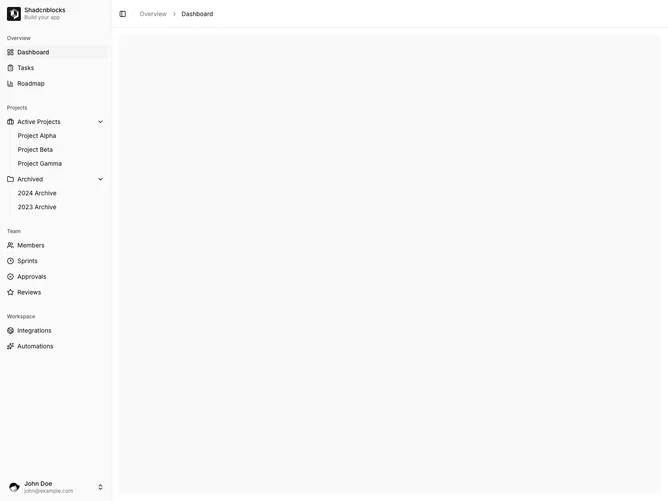
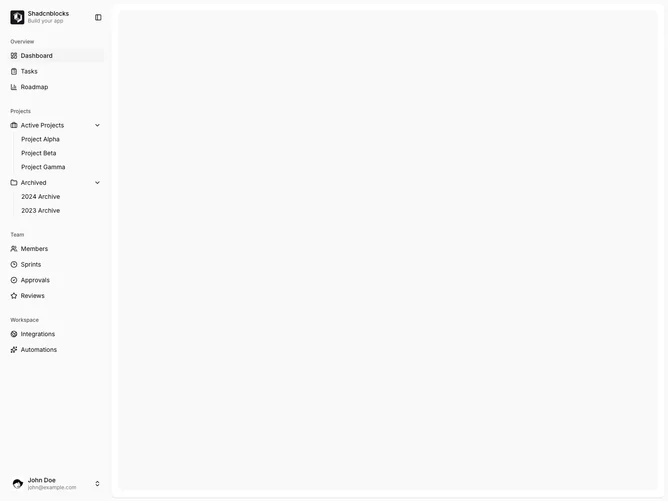
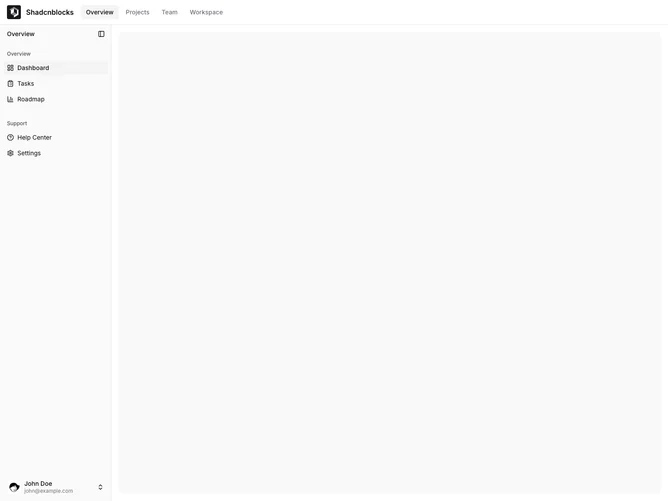
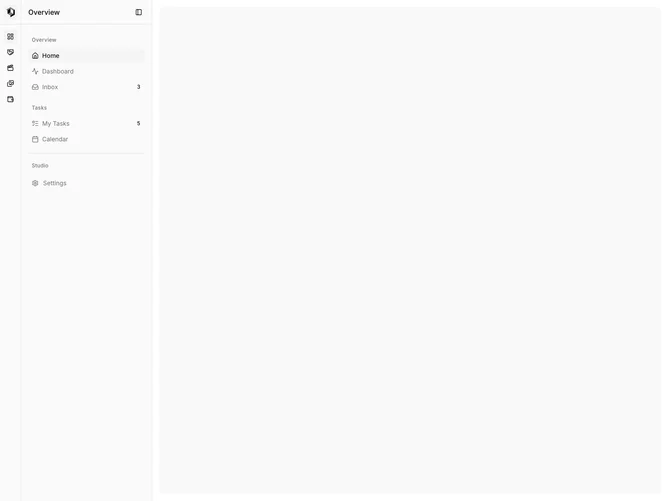
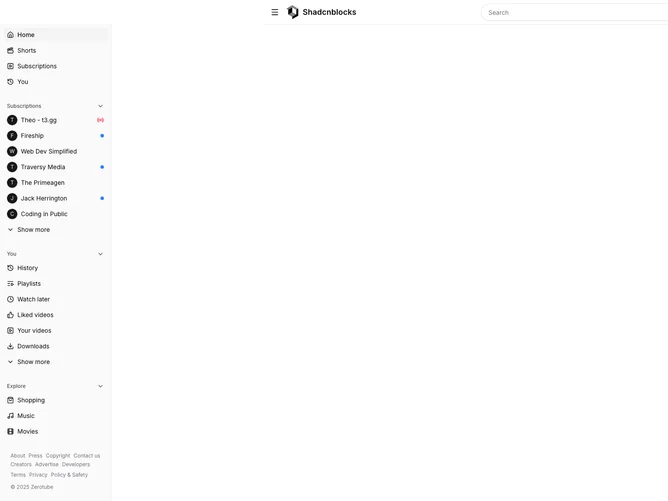
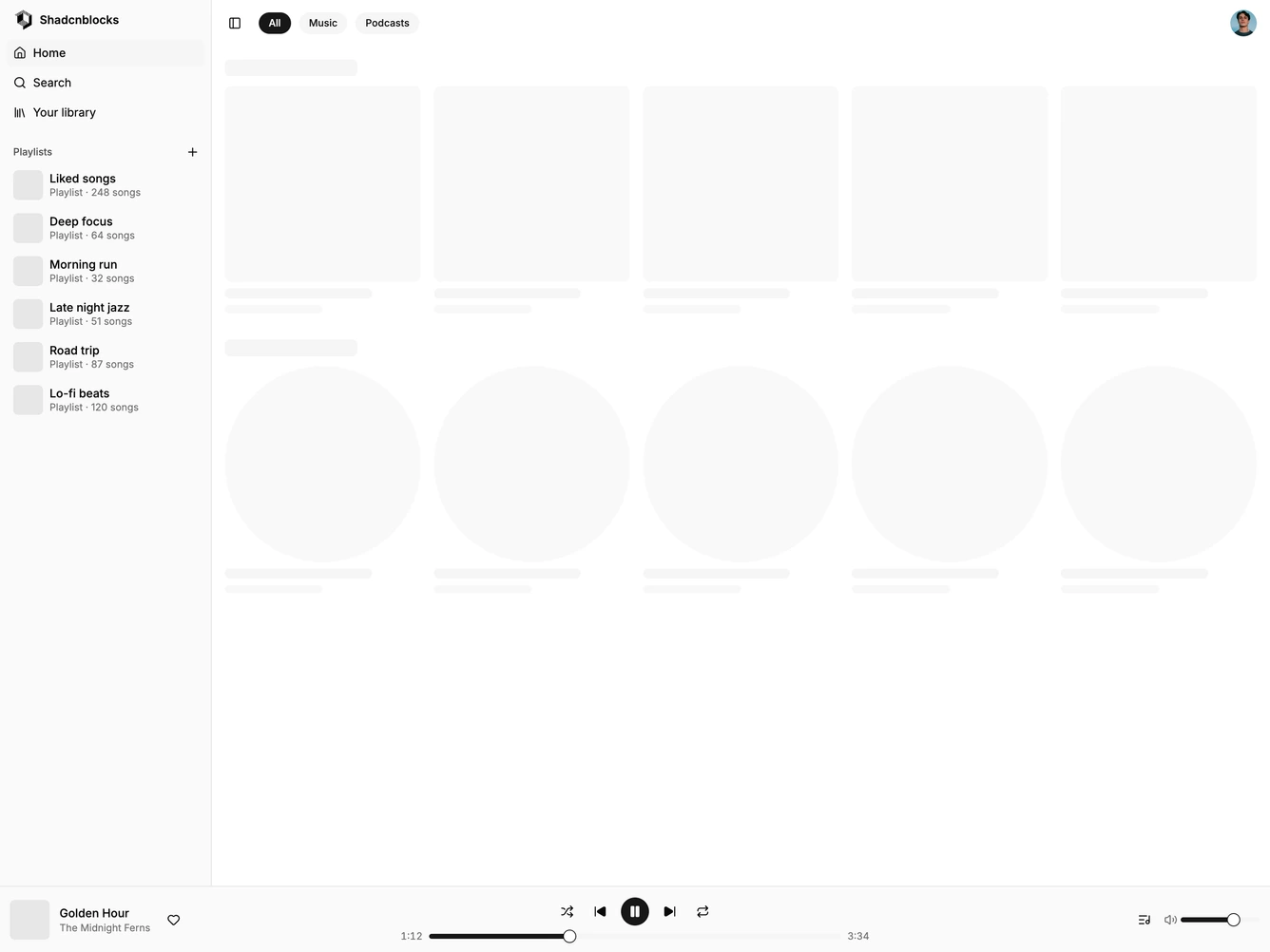
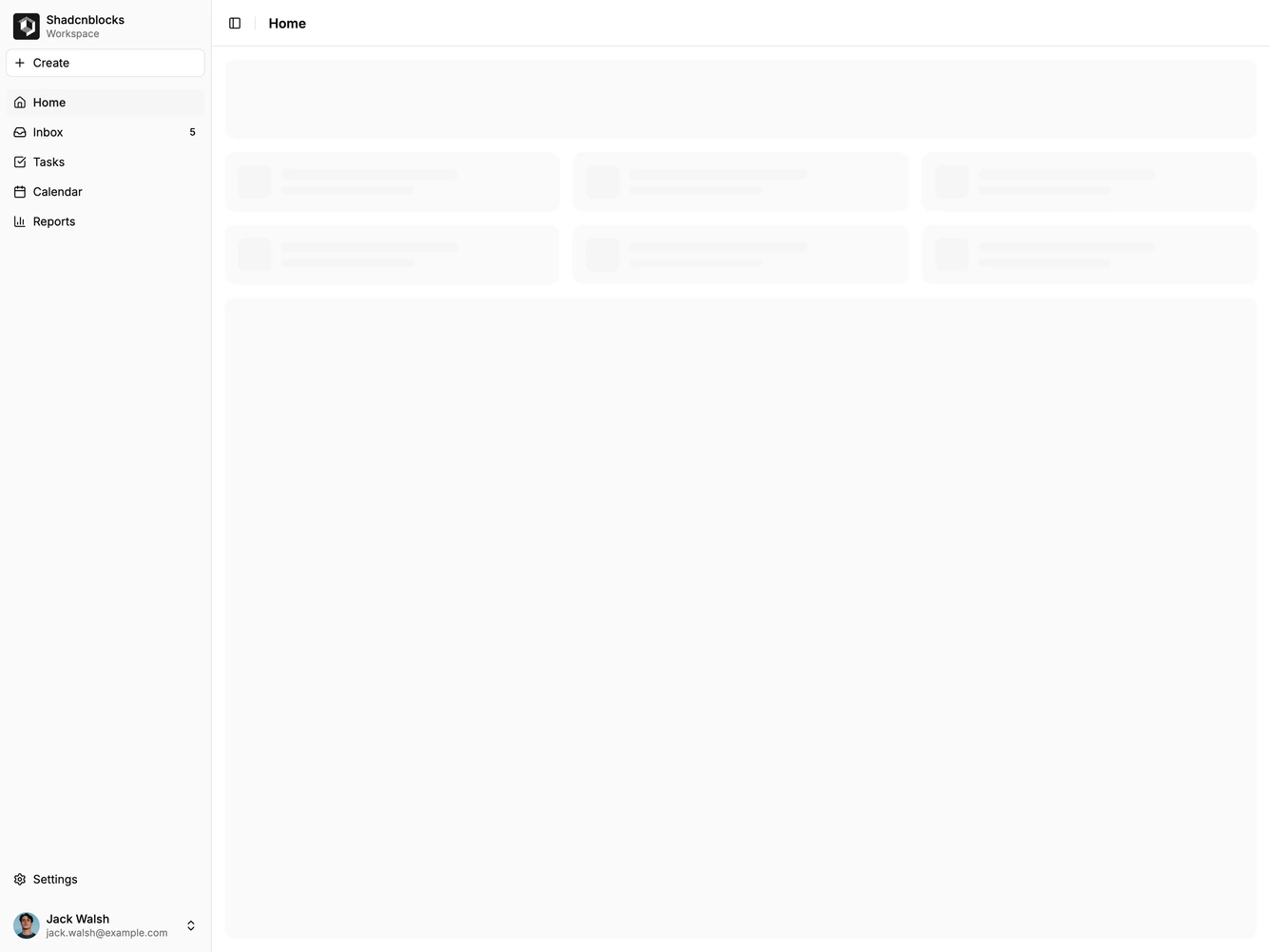
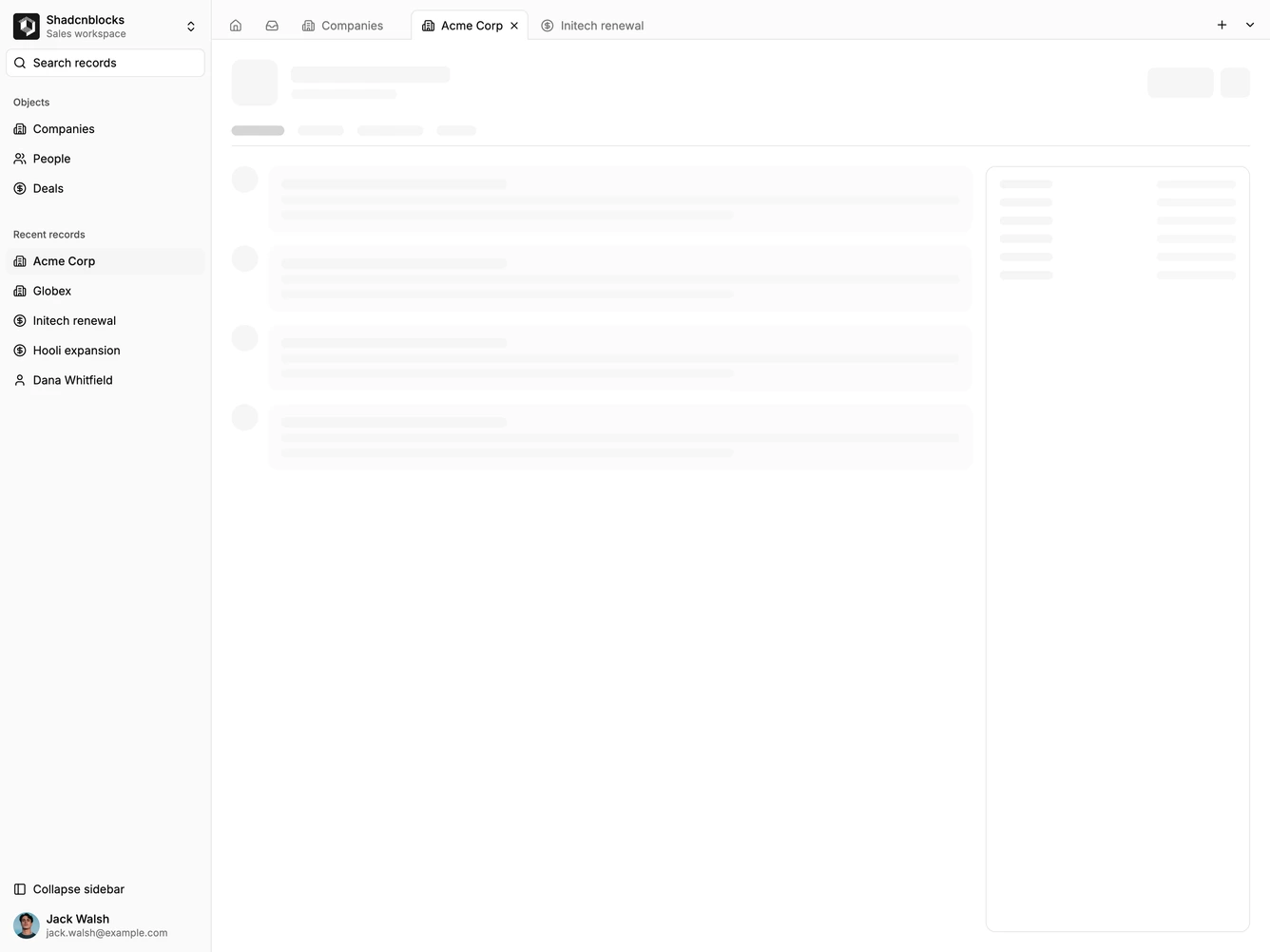
- Shadcn Application Shell Sidebar - App layouts led by a single collapsible, inset or floating sidebar with content beside it.
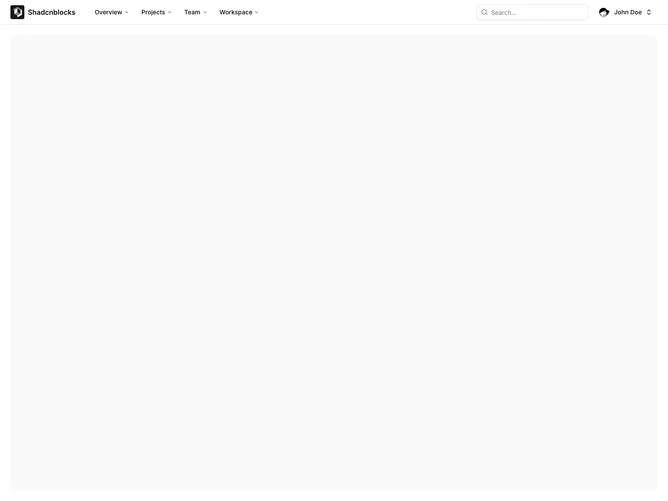
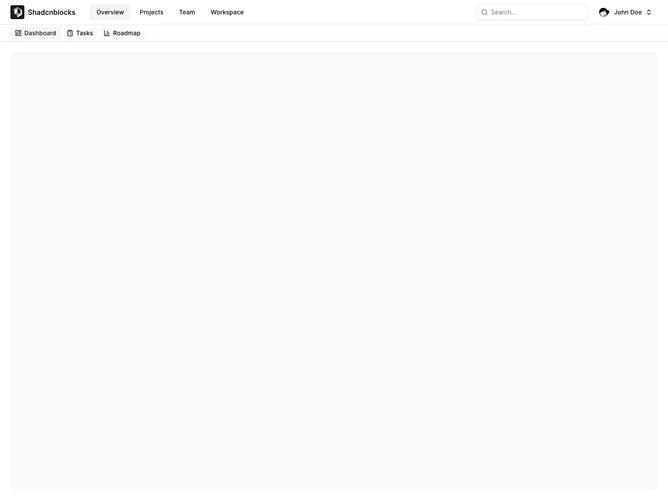
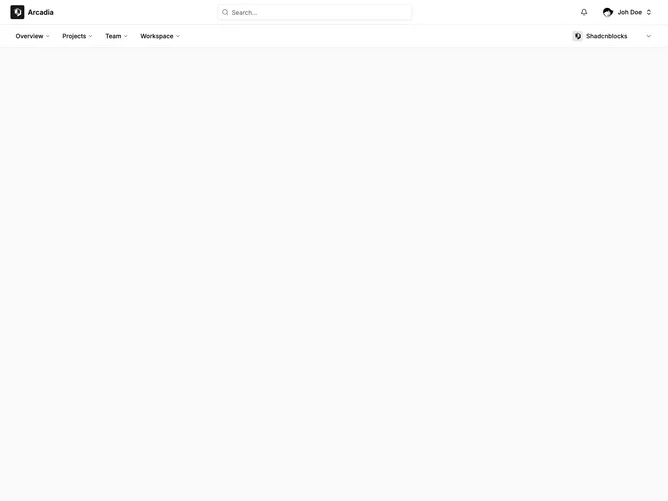
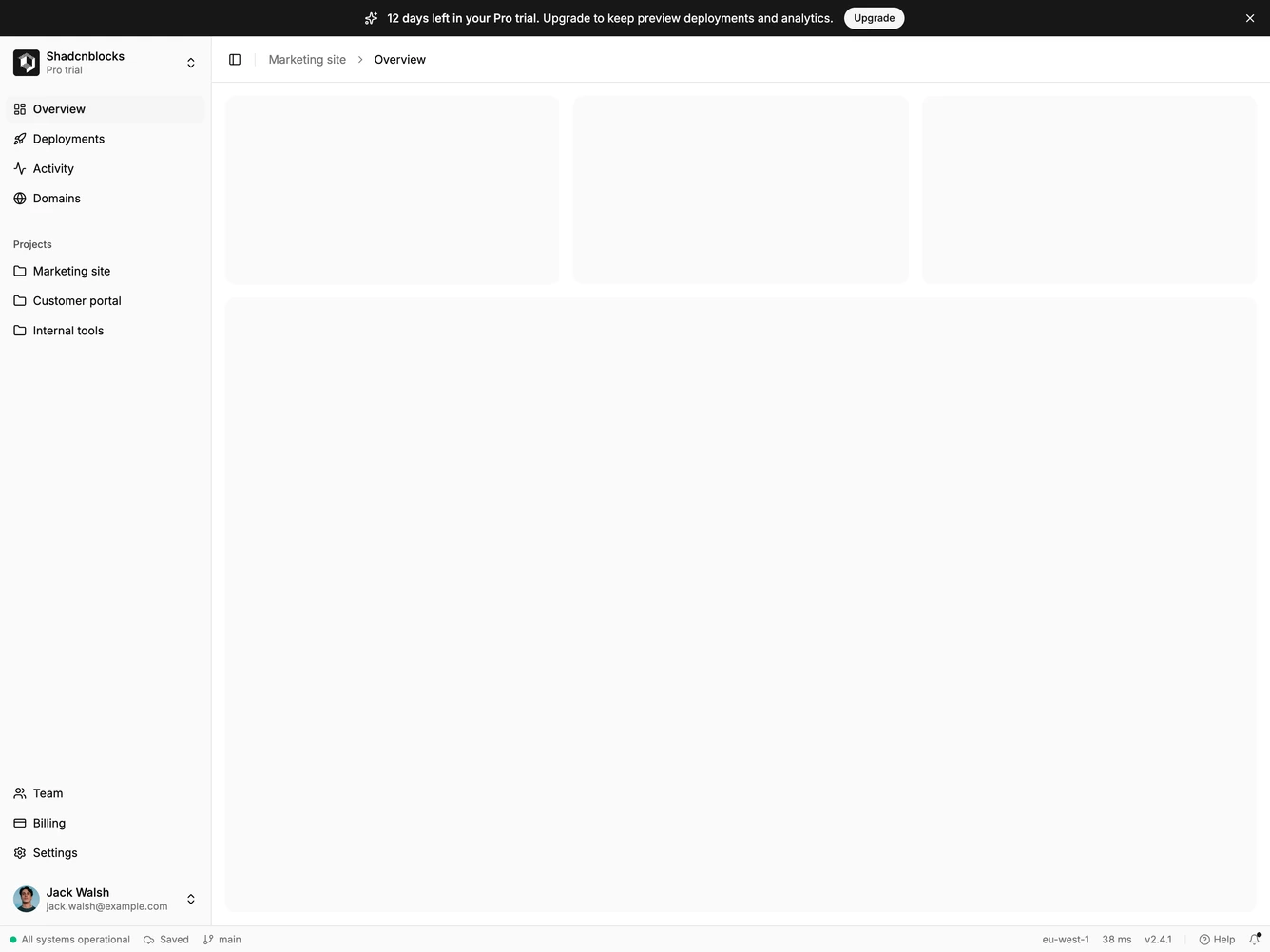
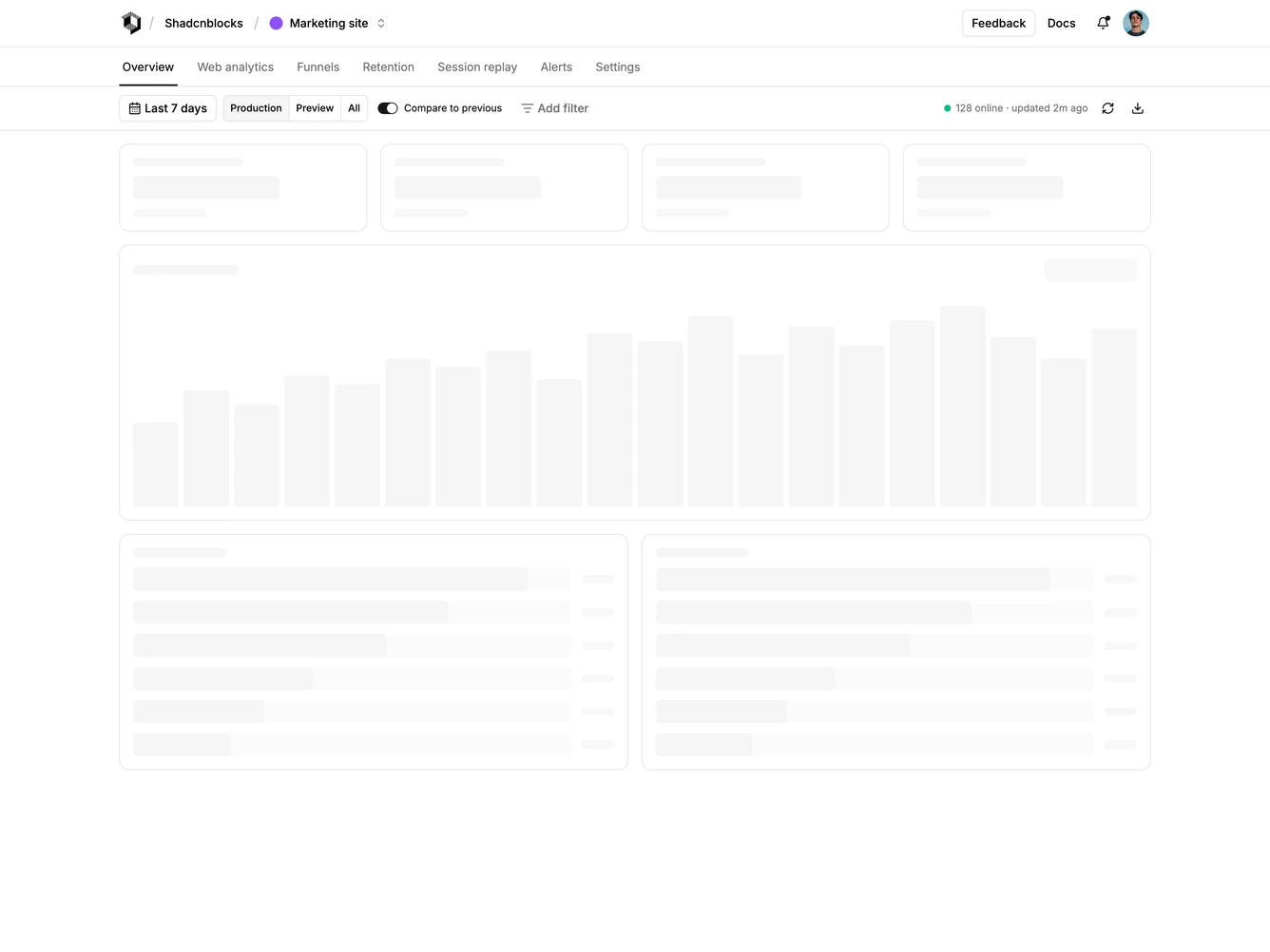
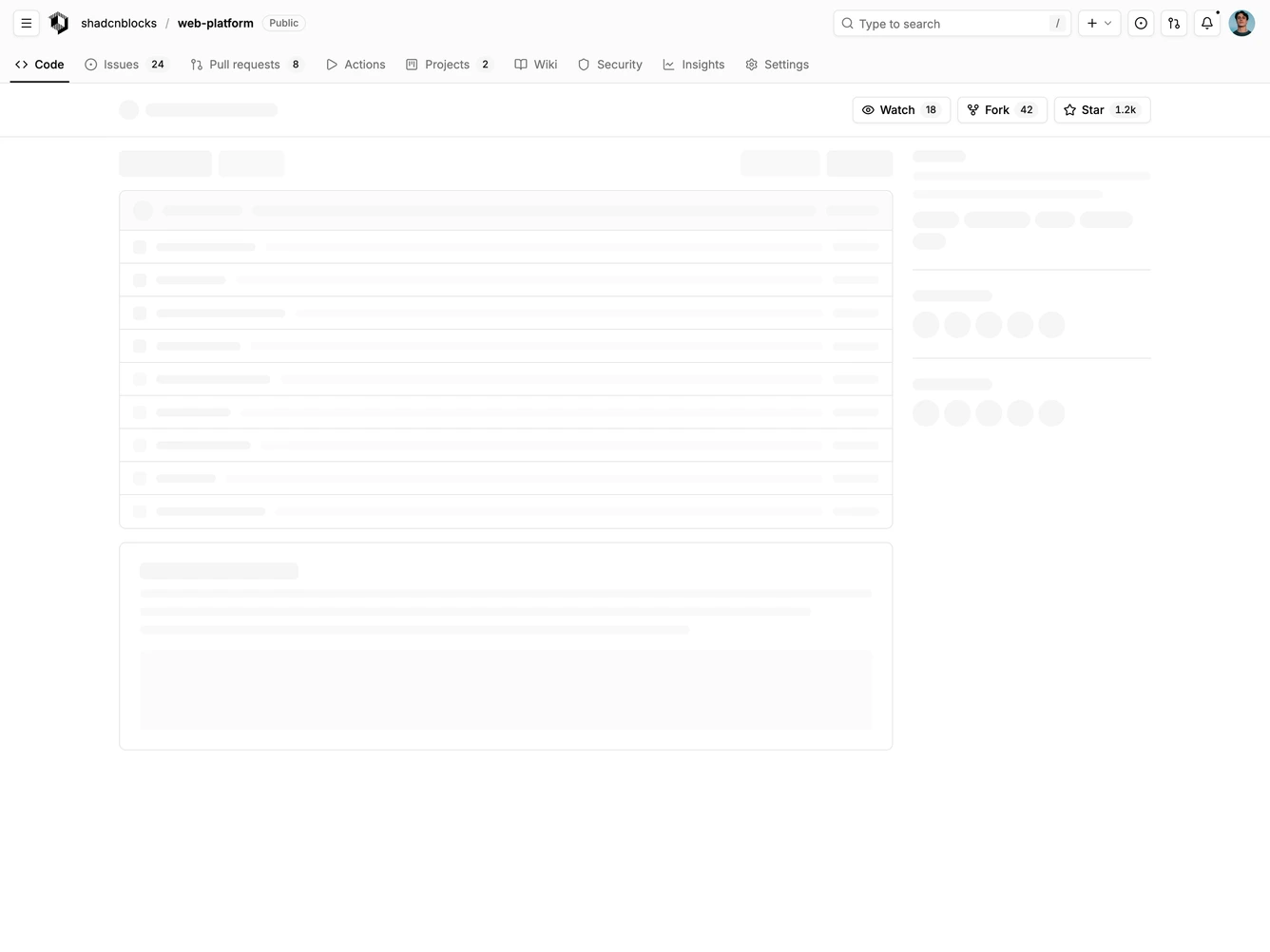
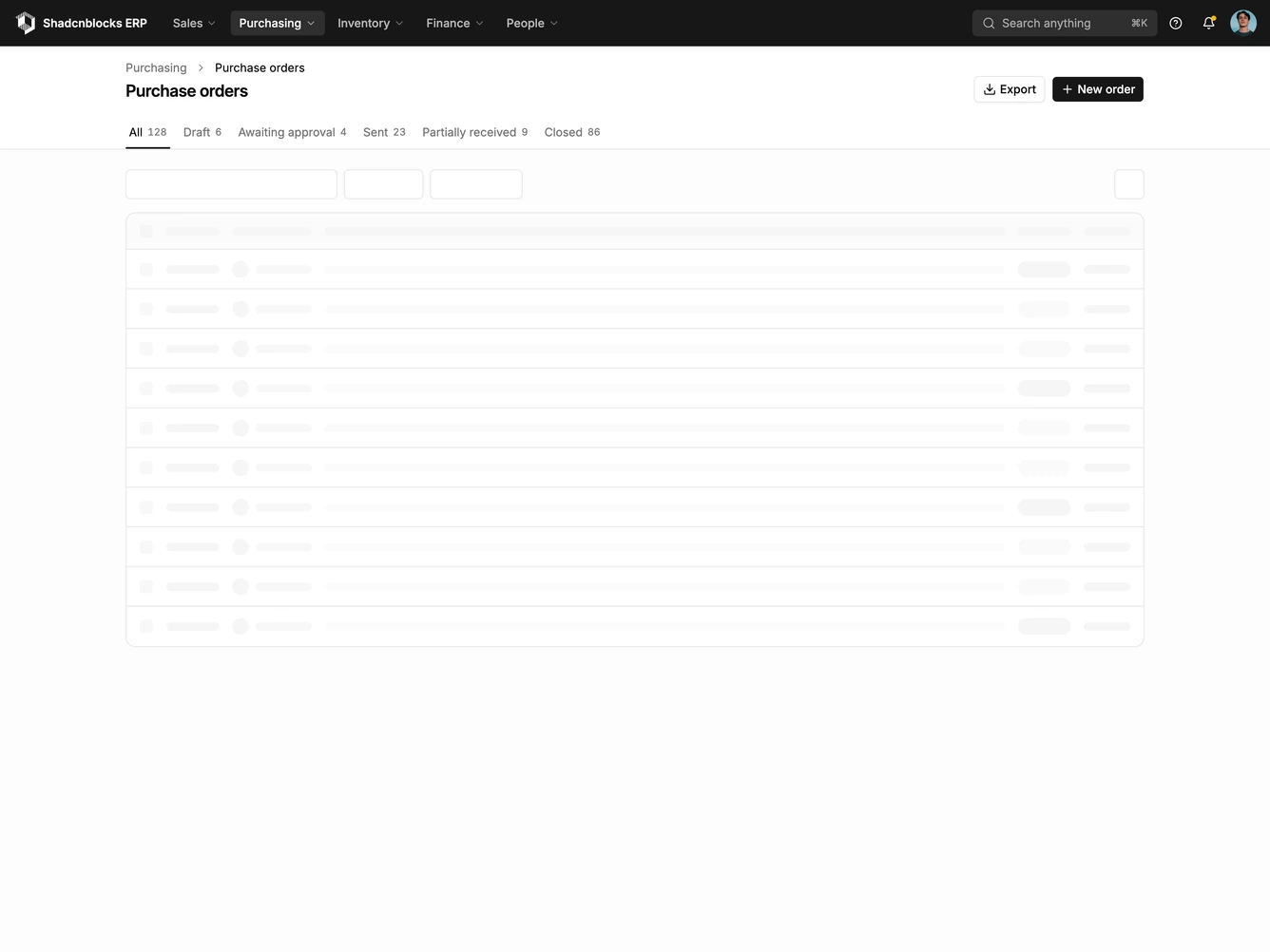
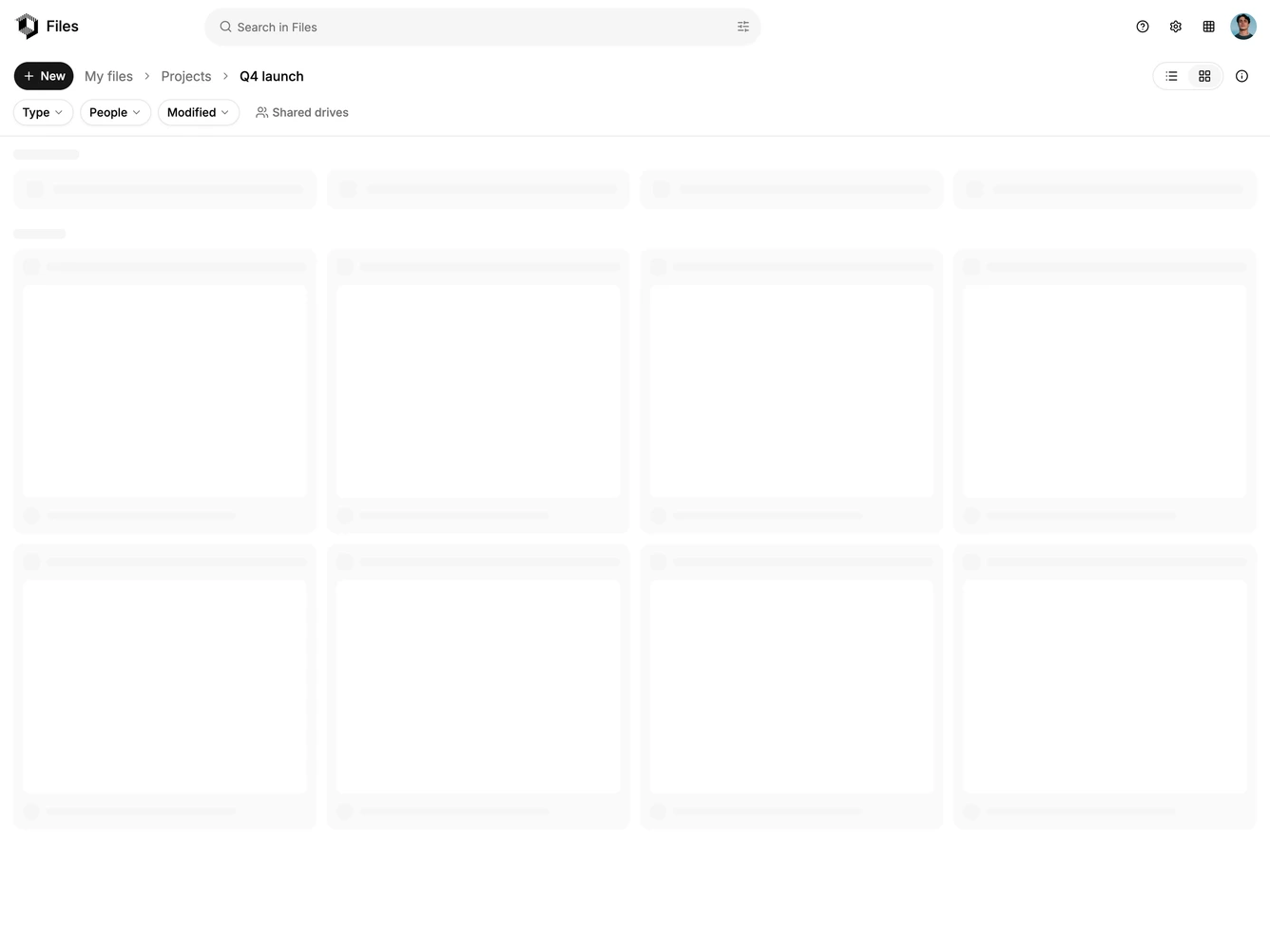
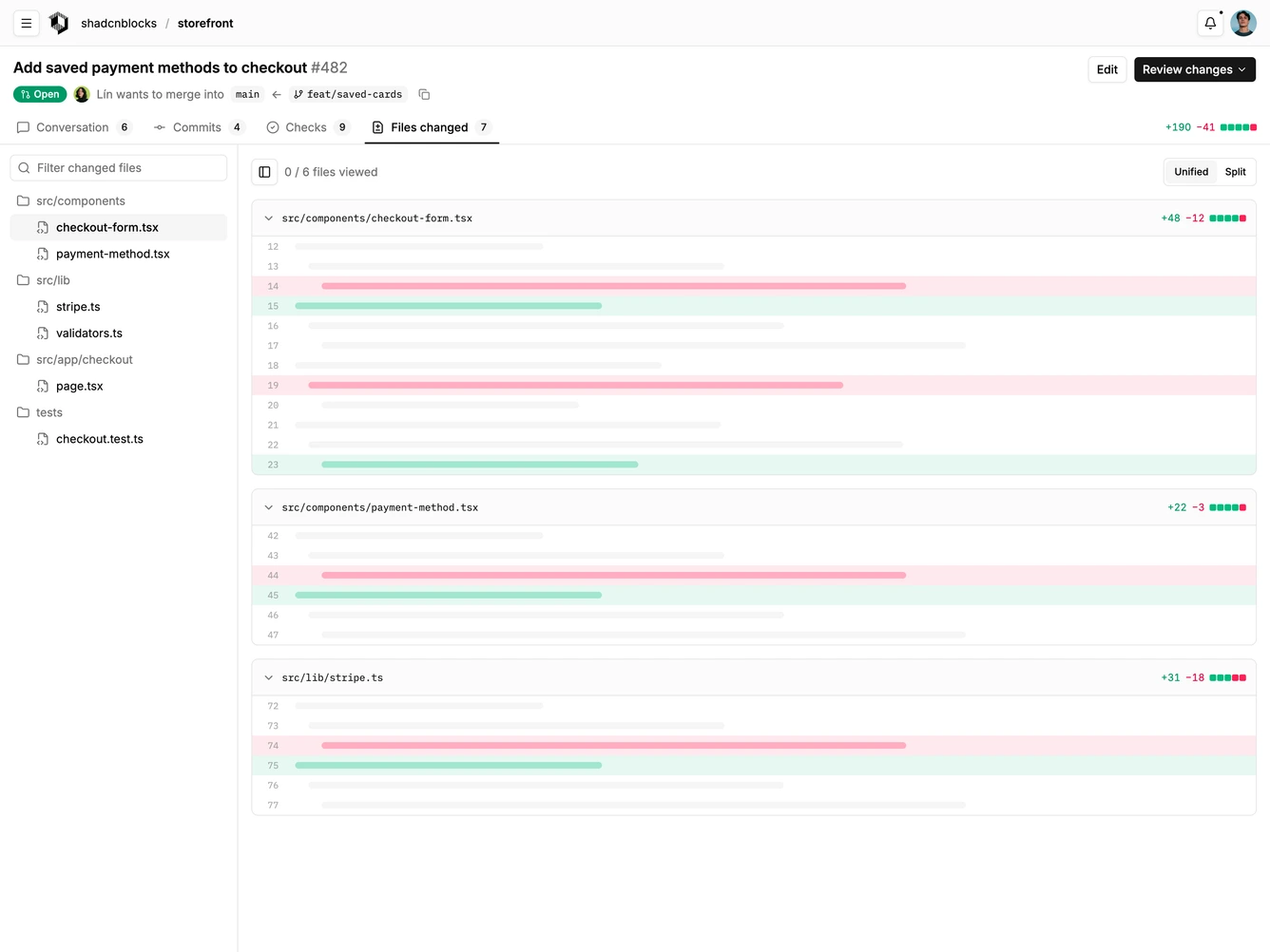
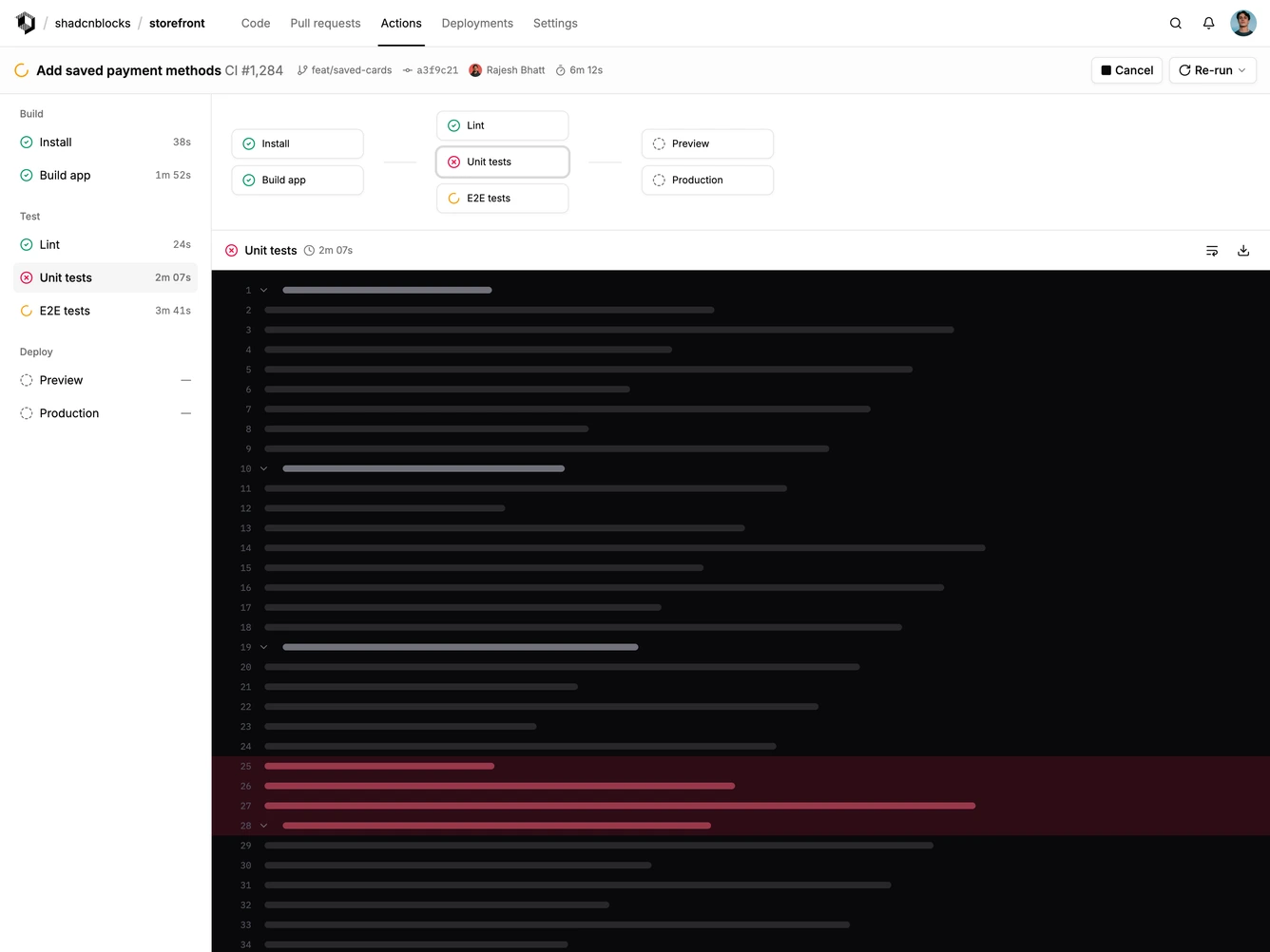
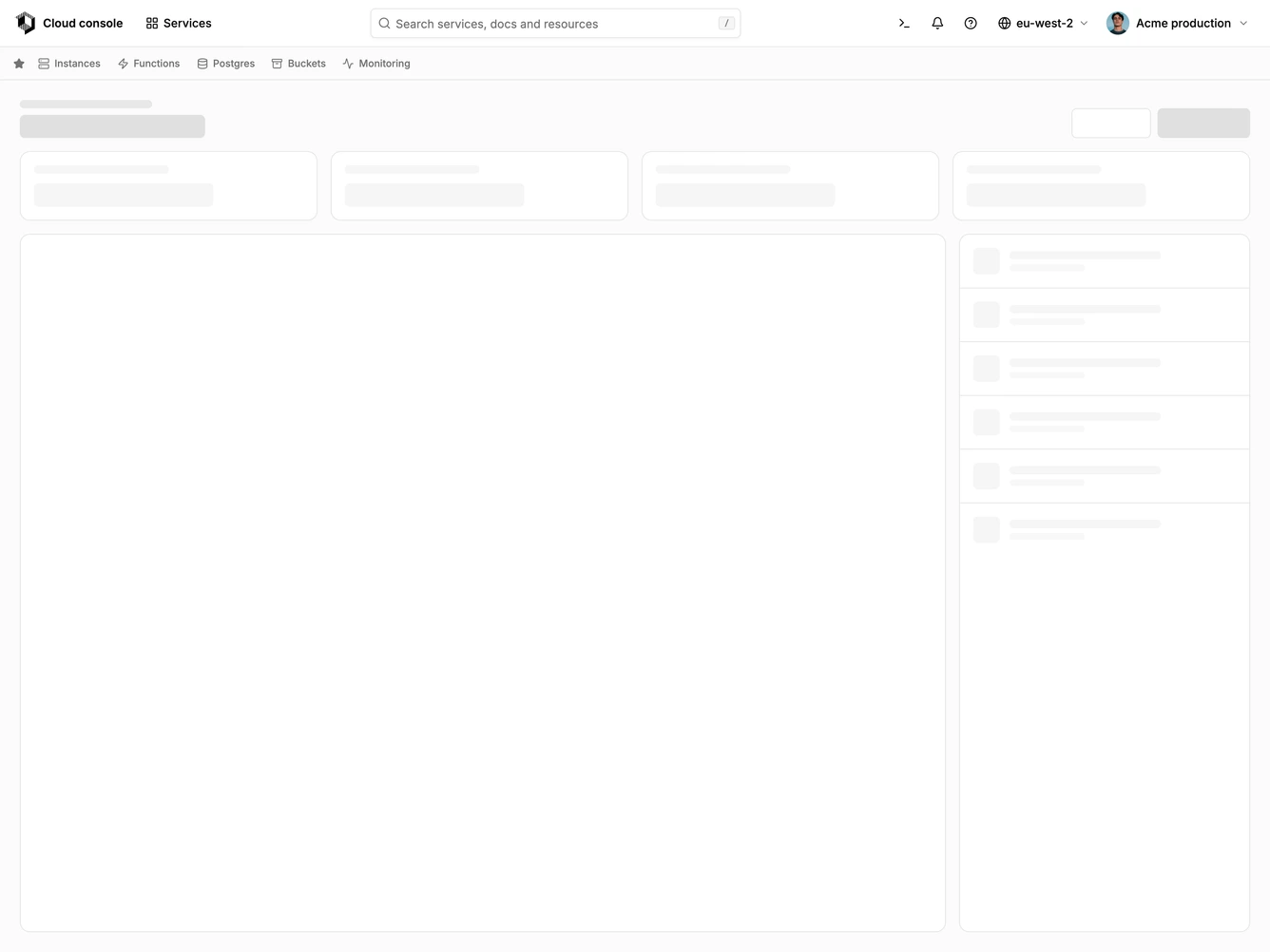
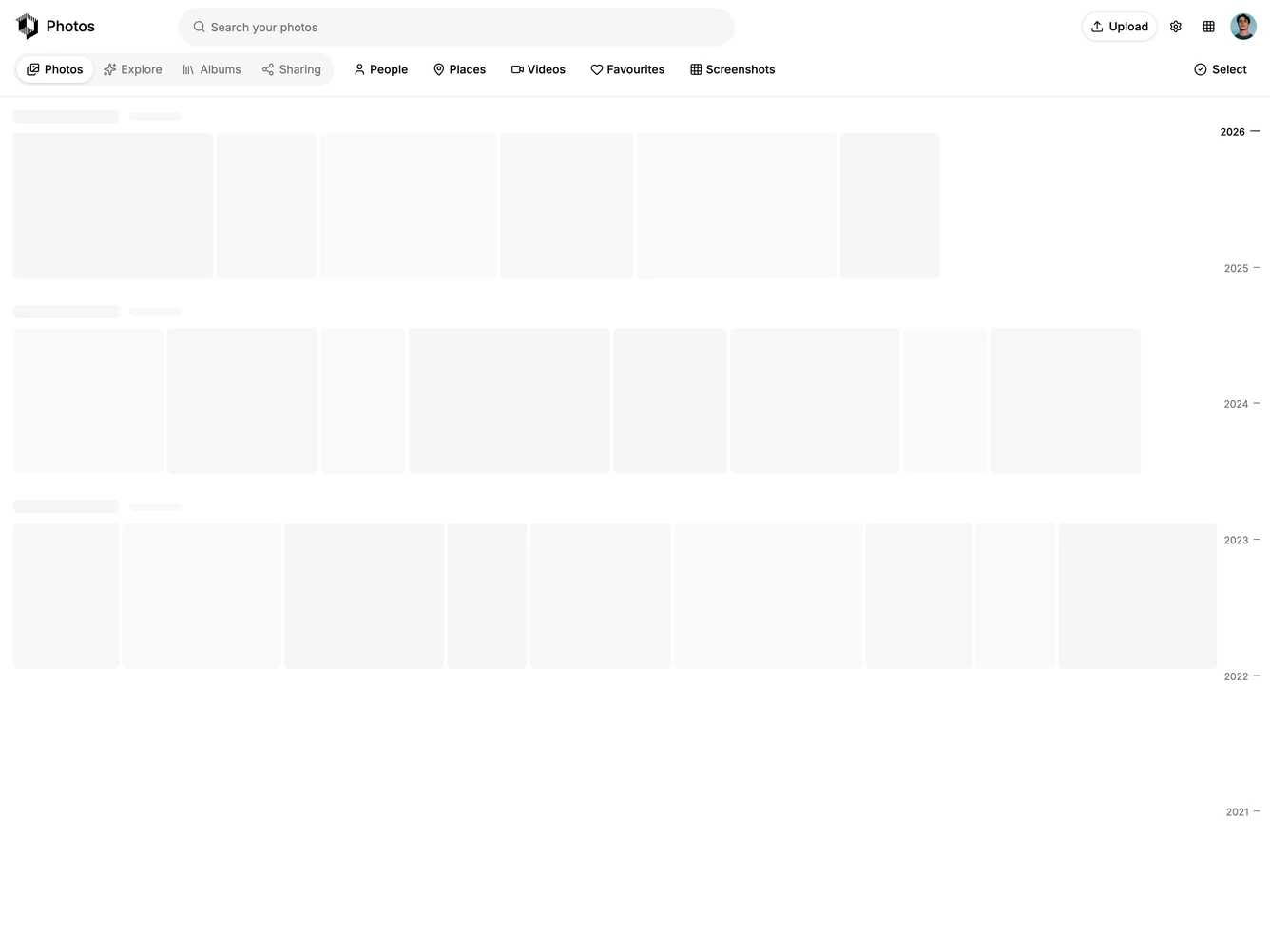
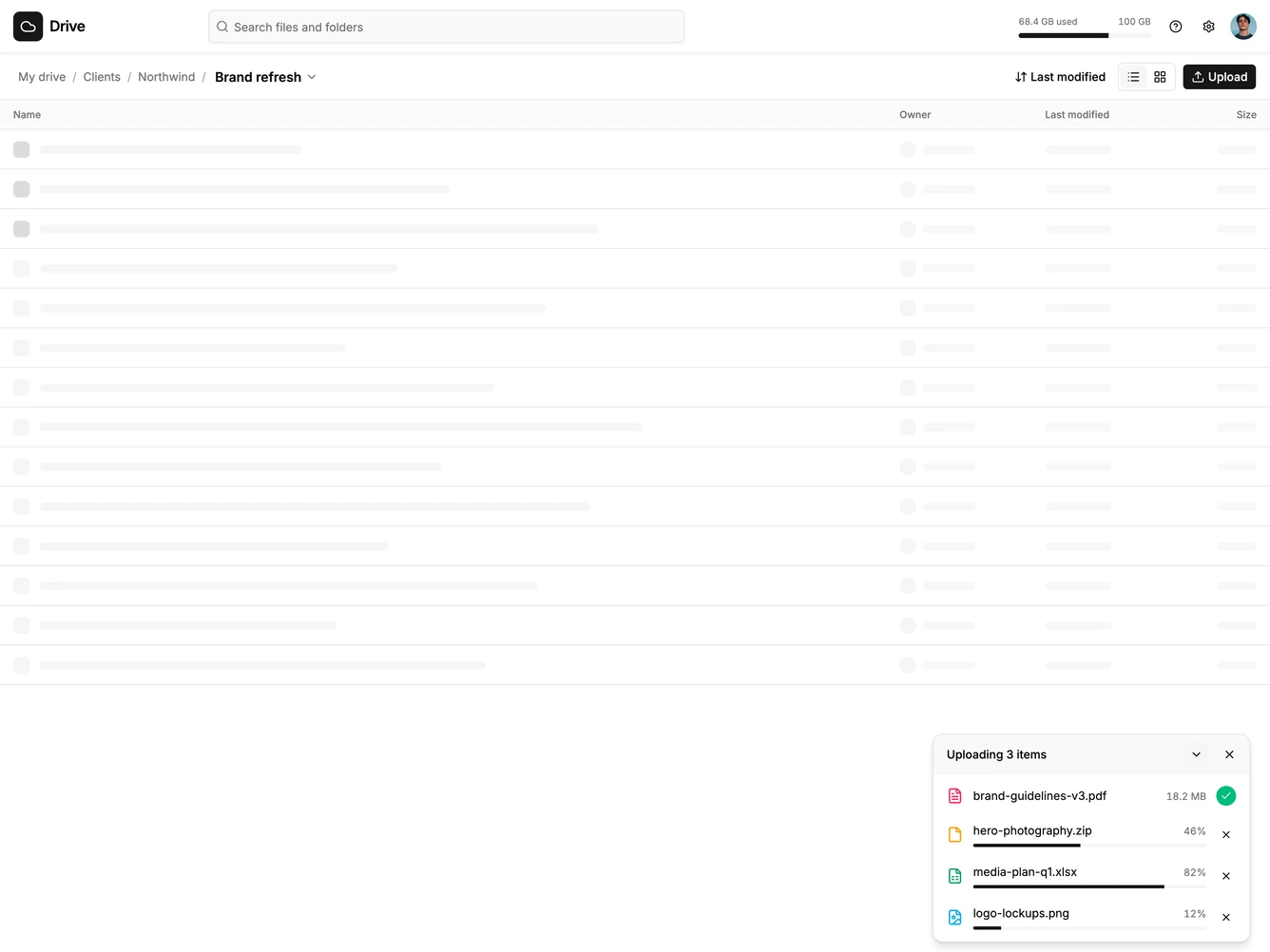
- Shadcn Application Shell Top Navigation - Header-led app layouts where a top bar and a second row of tabs or filters do the navigating, with any side panel tucked under the header.
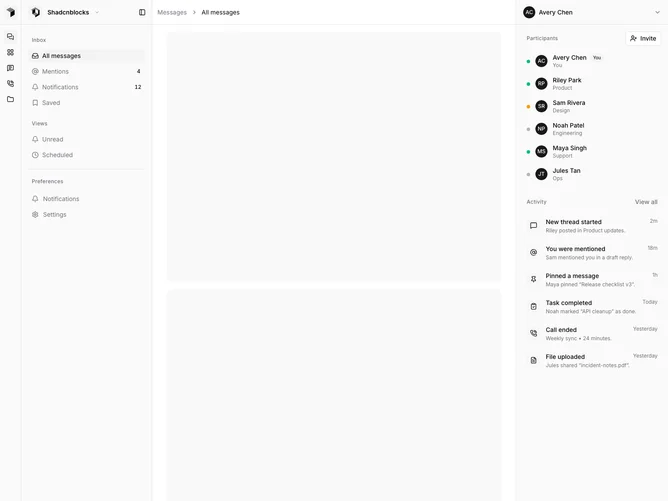
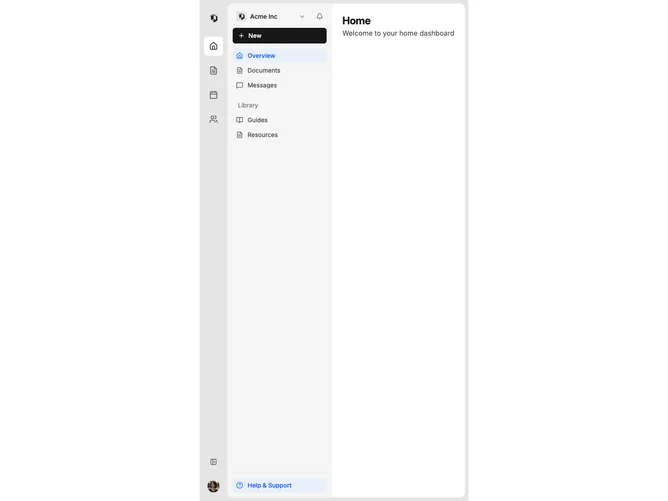
- Shadcn Application Shell Multi-Pane - App layouts with an icon rail and panel, two sidebars, or three or more resizable columns.
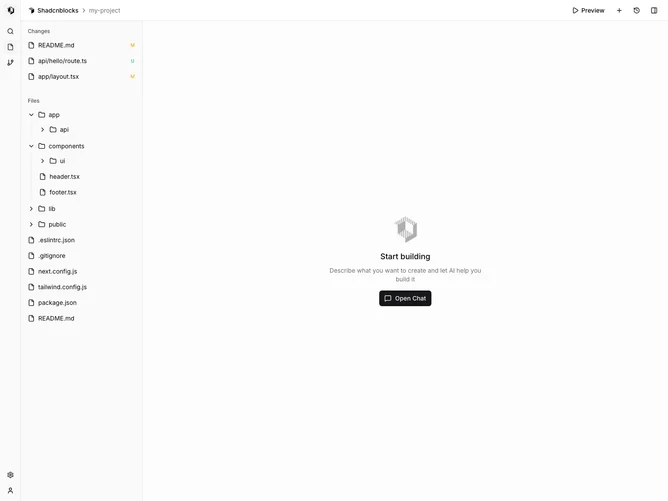
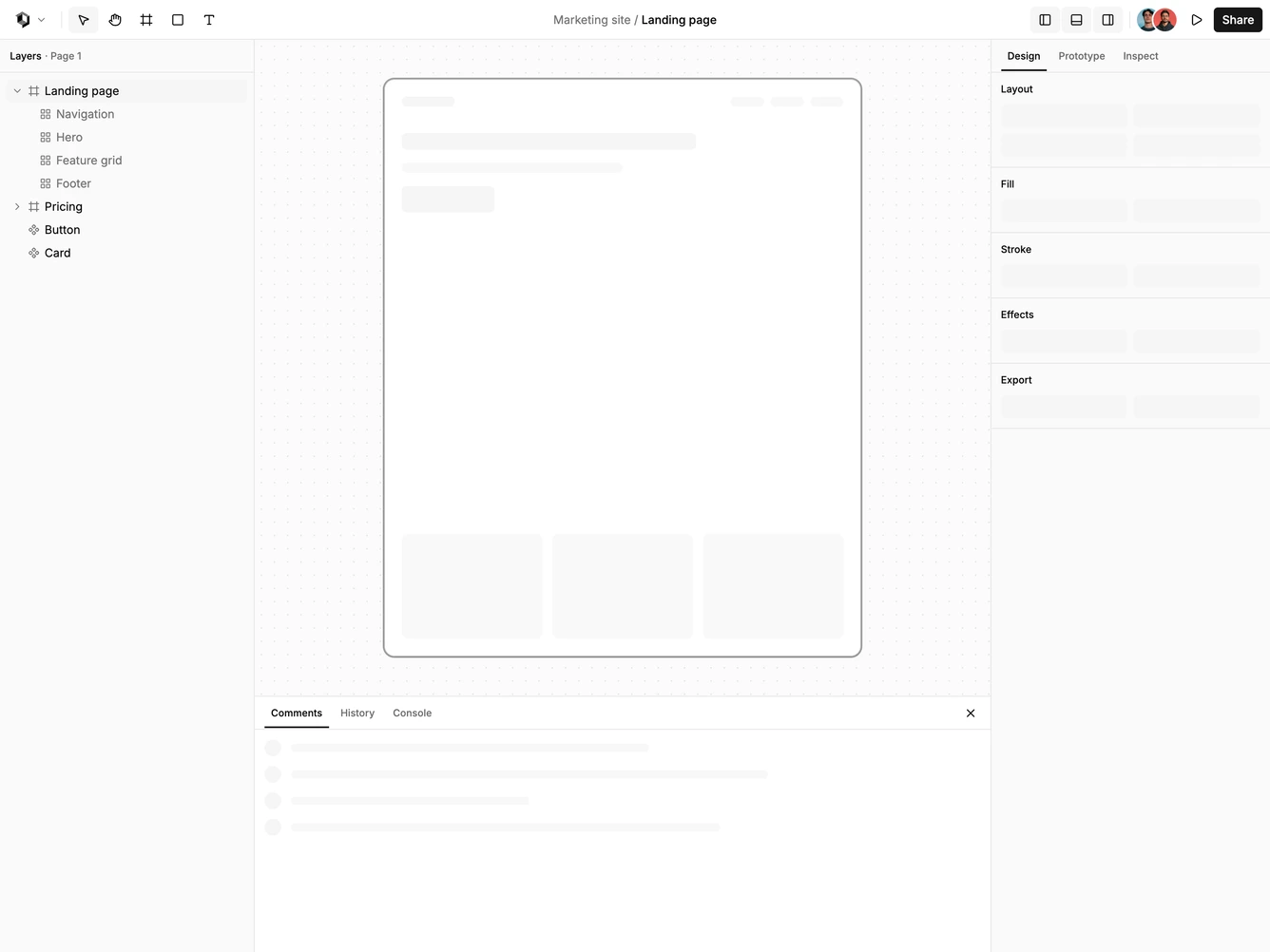
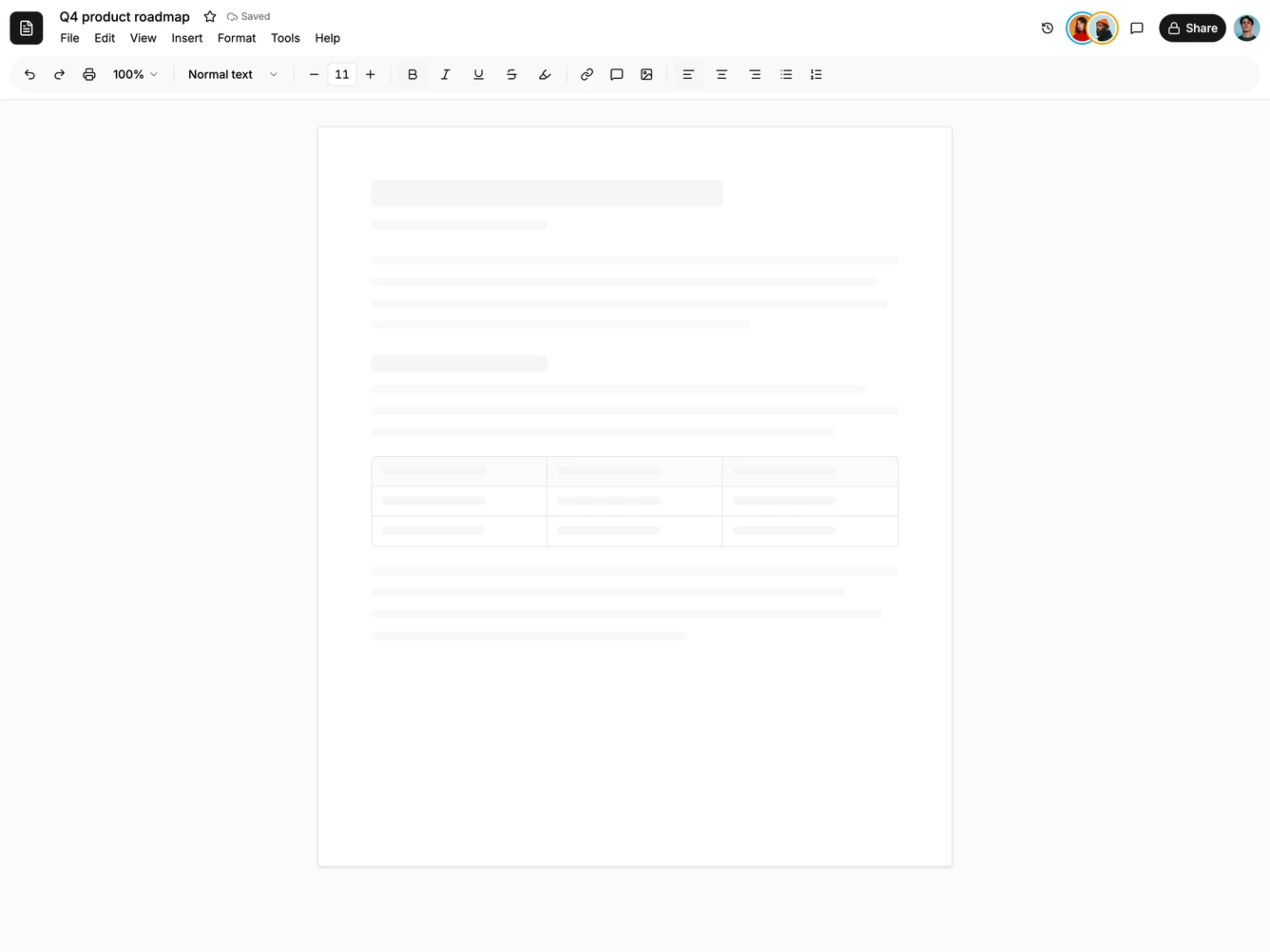
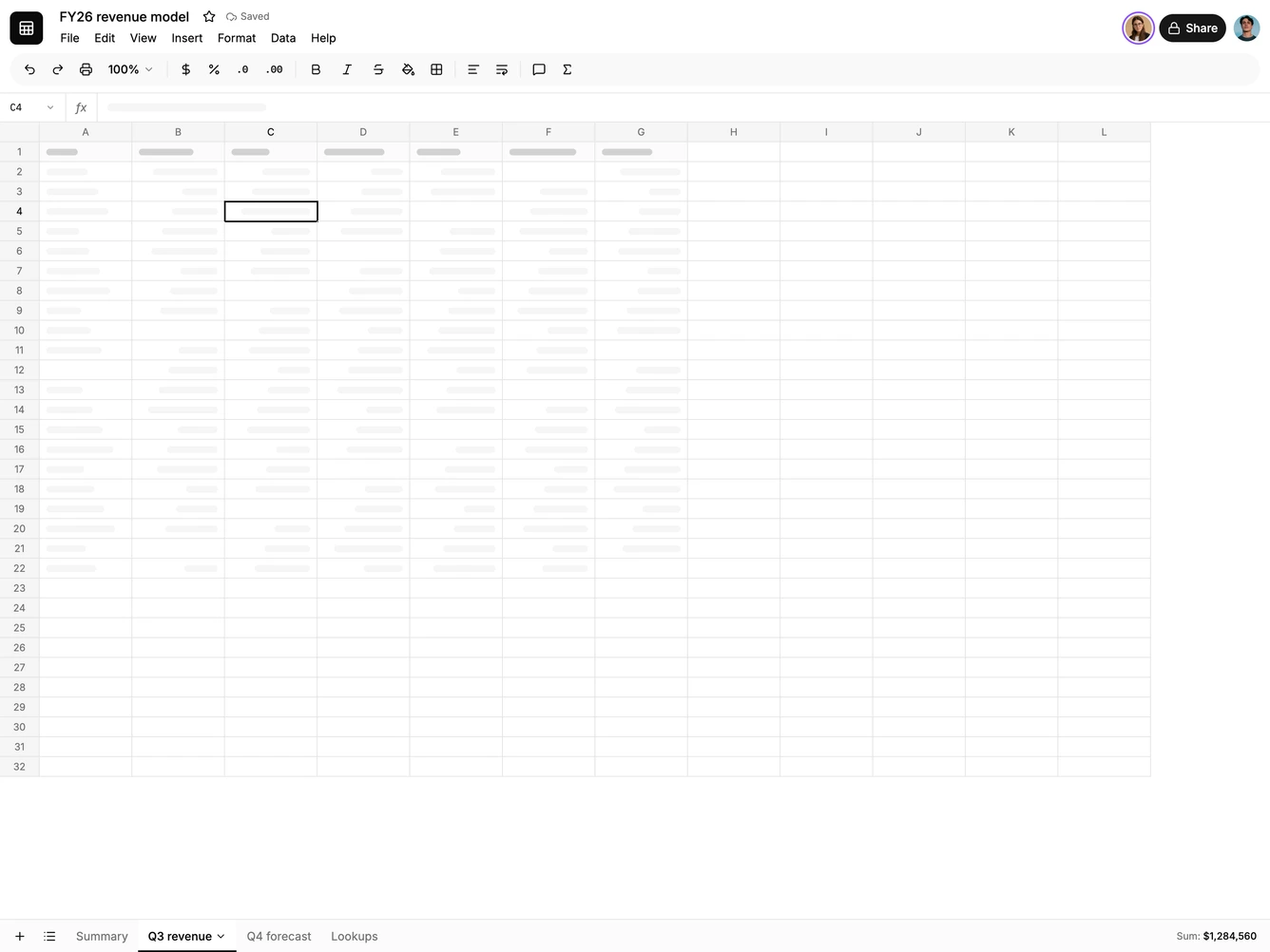
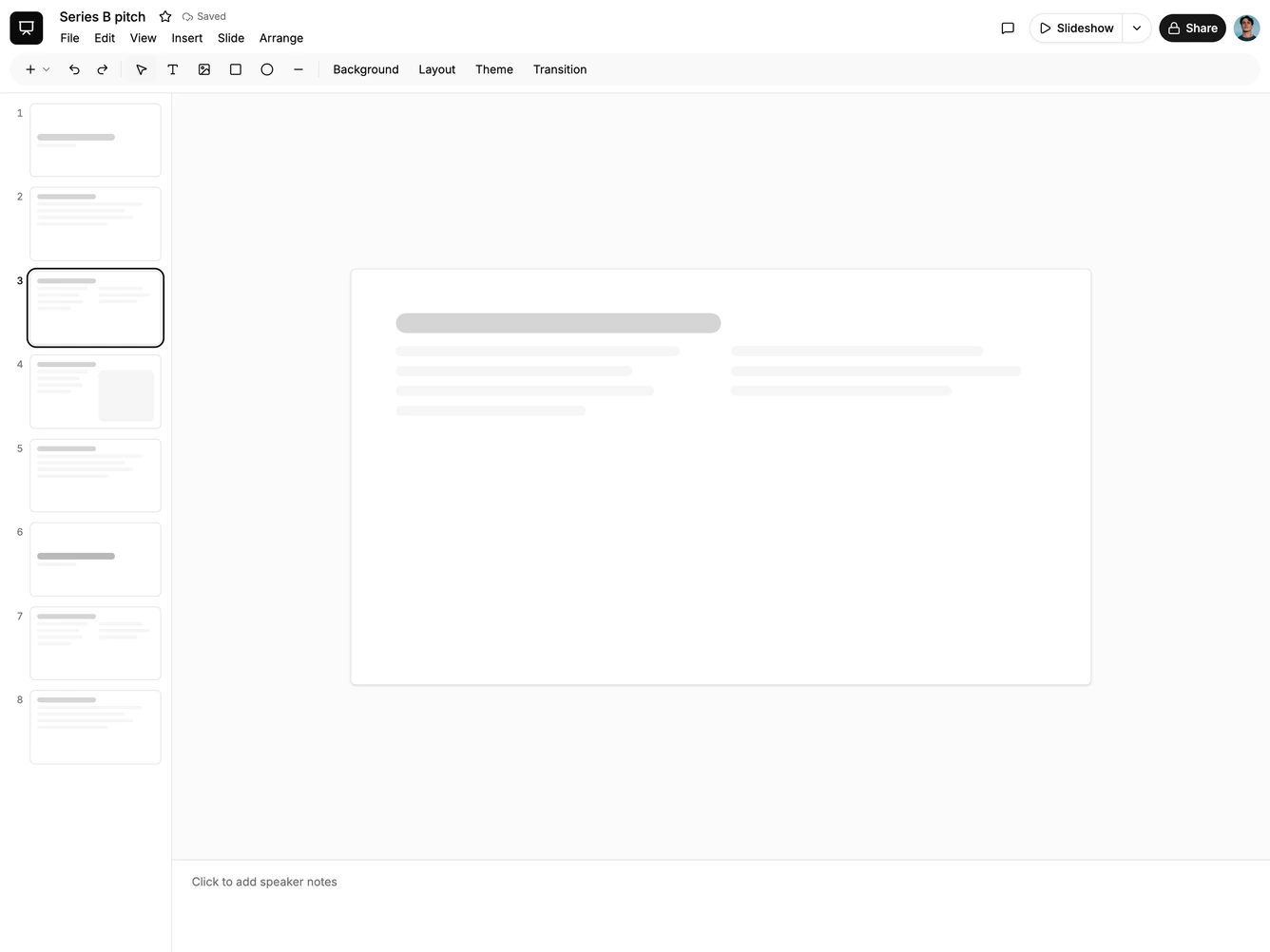
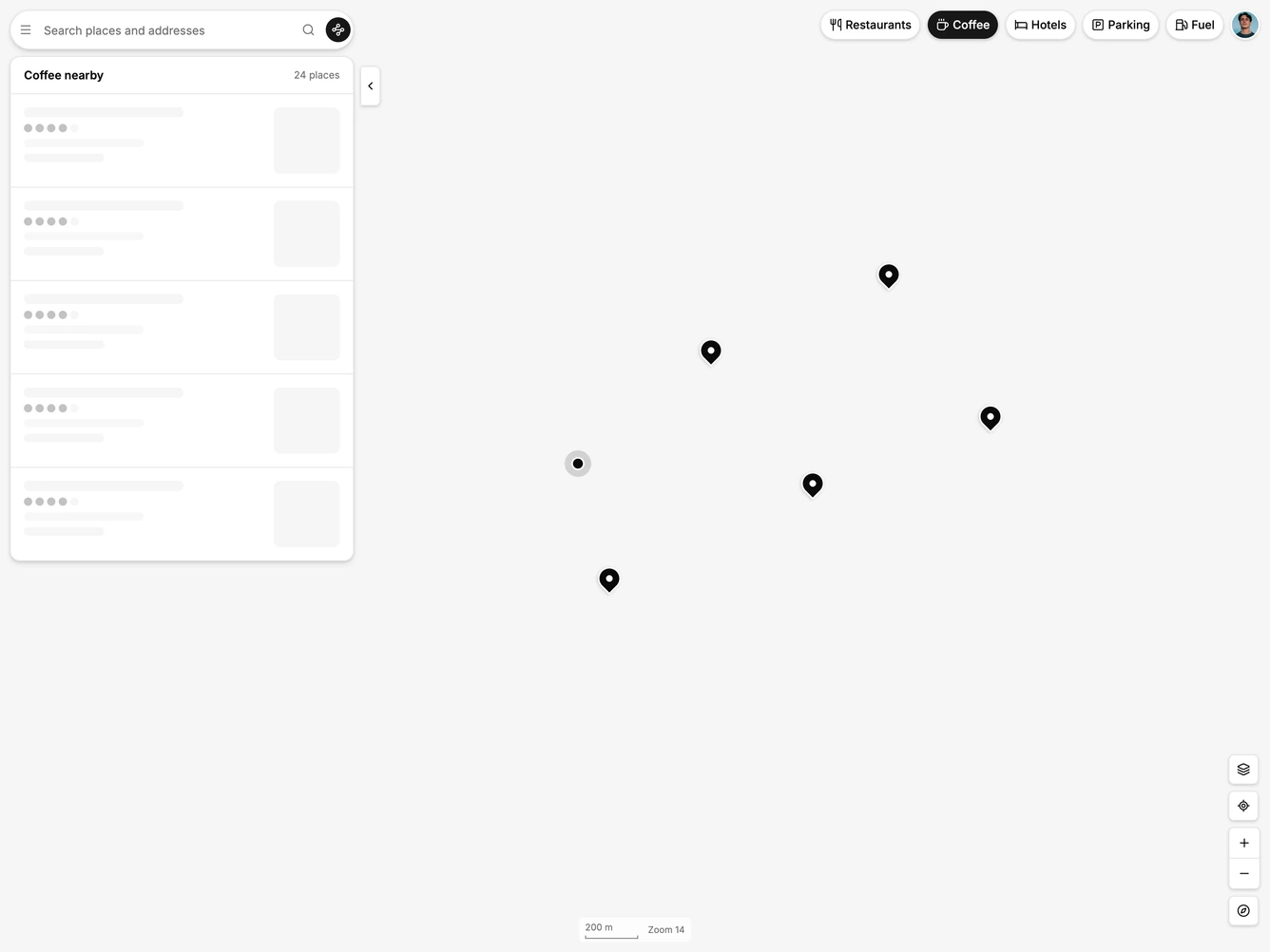
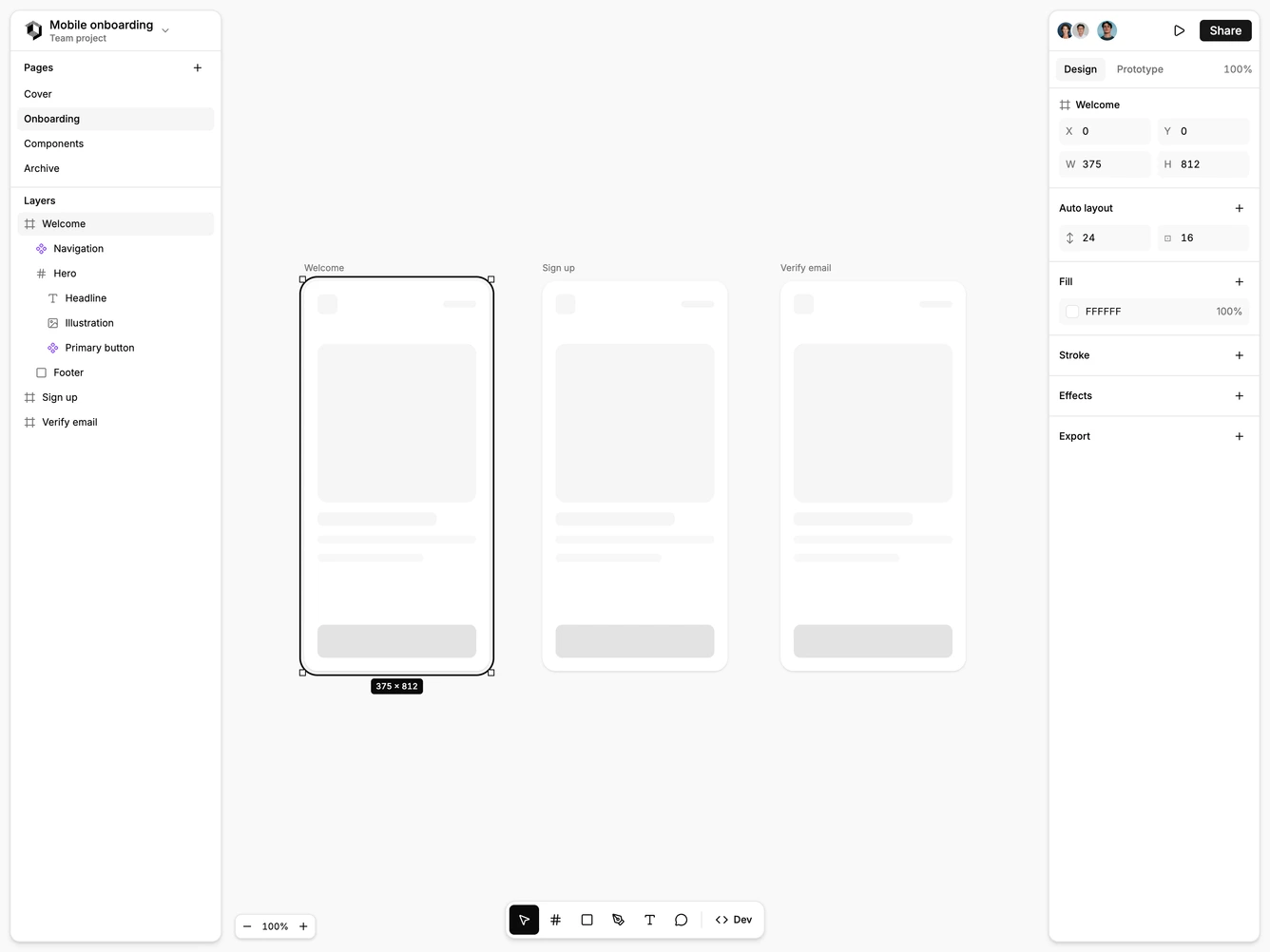
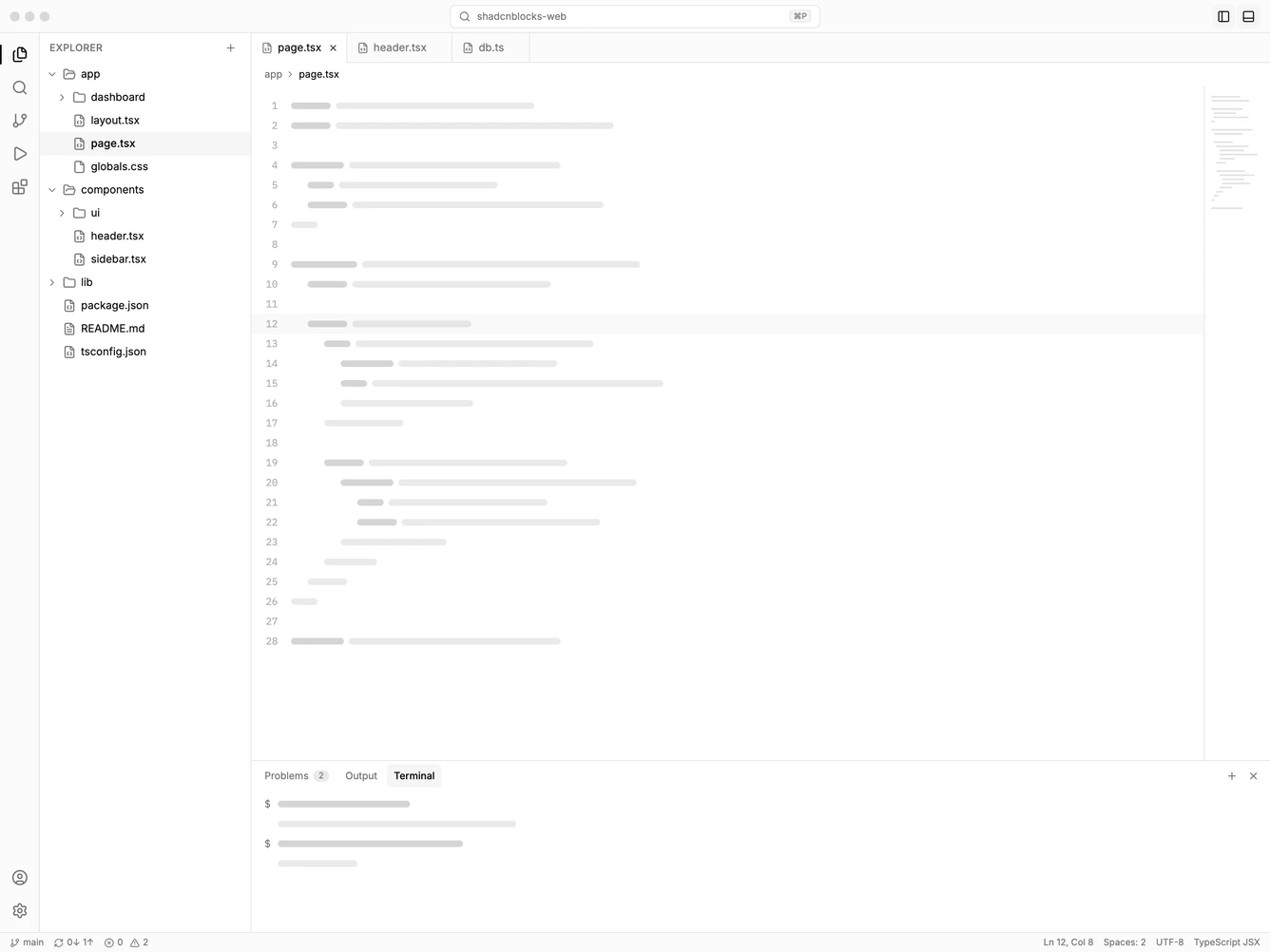
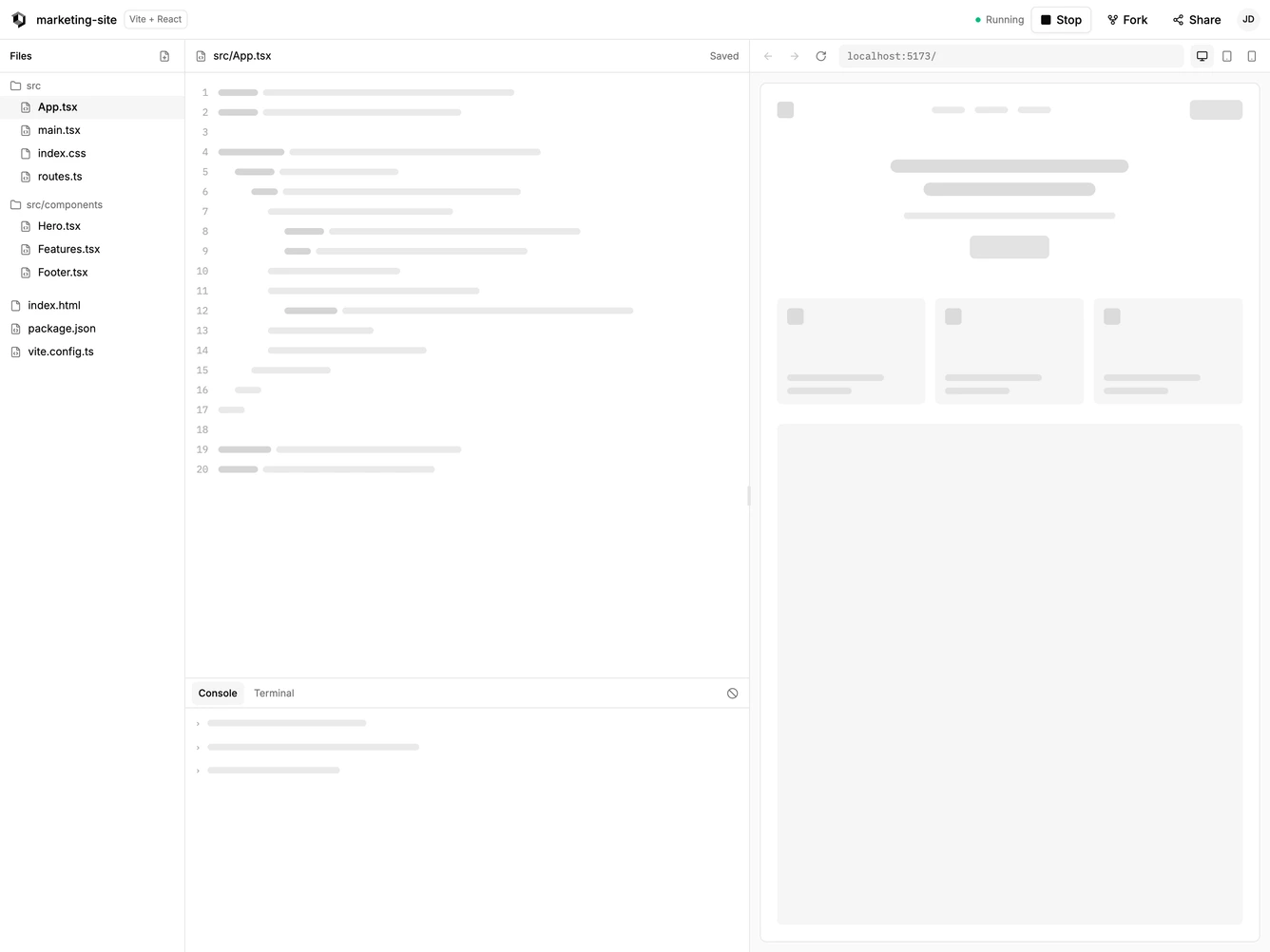
- Shadcn Application Shell Editor - Full-screen workspaces for documents, sheets, slides, canvases, maps and code, framed by tool bars, floating panels or IDE chrome.
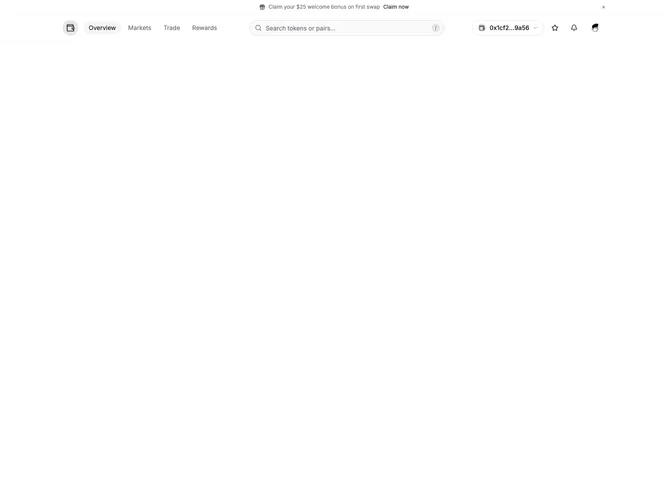
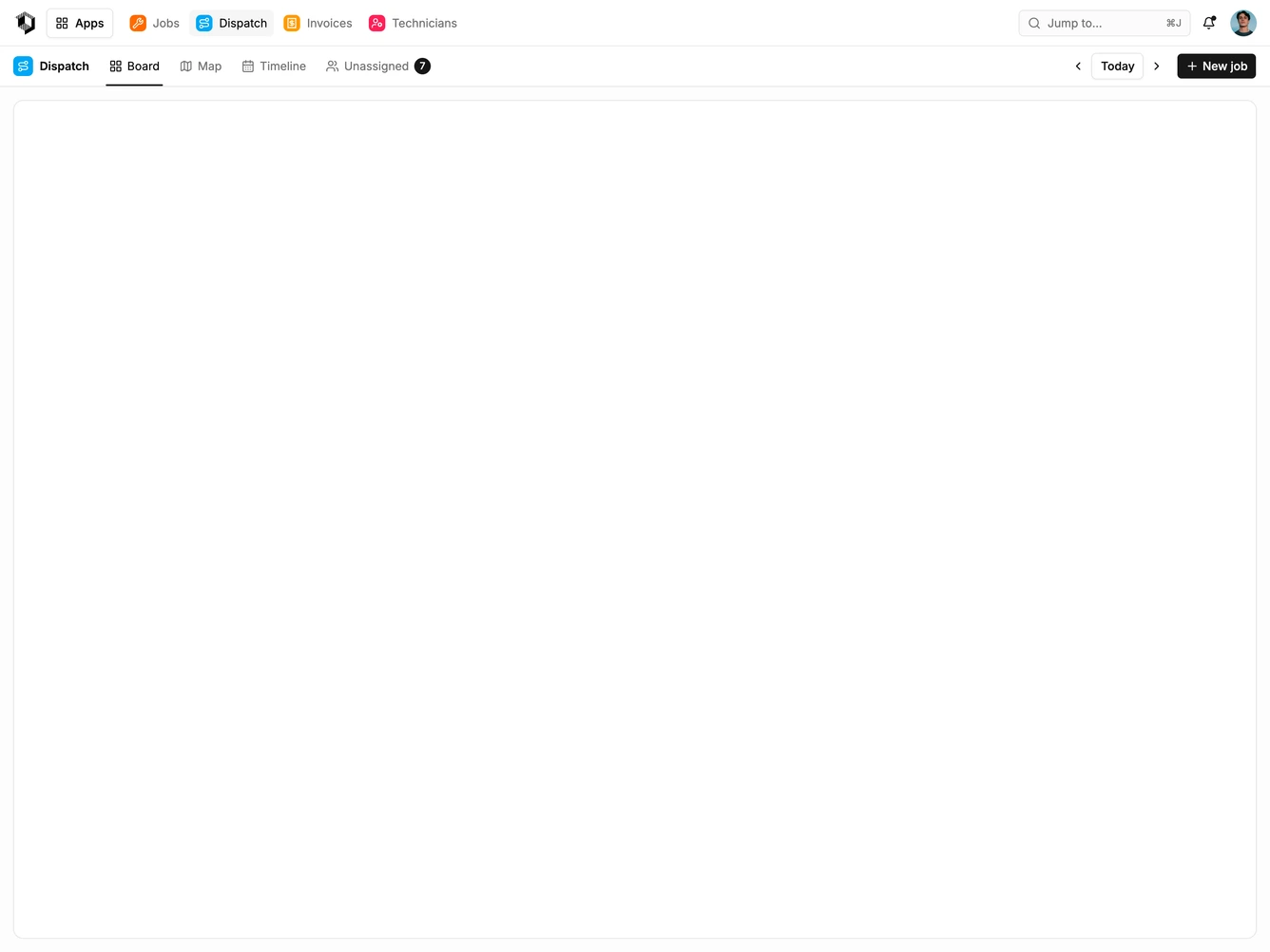
- Shadcn Application Shell Mega Menu - App layouts whose top bar opens large multi-column menus or full-width app launchers.