Getting Started
Install shadcn/ui blocks in your React and Tailwind CSS project using the shadcn CLI. Complete setup guide.
New Projects
1. Create your project
The fastest way to create a new project is to use the official shadcn create.
This tool will generate a shadcn init command that will install a new Next.js, Astro, Vite, or TanStack project with pre-configured components.json and globals.css.
For example, to install a default shadcn Next.js project you can run:
npx shadcn@latest init --preset b0 --template next2. Add the @shadcnblocks registry
Add the @shadcnblocks registry to your components.json.
{ "$schema": "https://ui.shadcn.com/schema.json", "style": "radix-nova", "rsc": true, "tsx": true, "tailwind": { "config": "", "css": "app/globals.css", "baseColor": "neutral", "cssVariables": true, "prefix": "" }, "iconLibrary": "lucide", "rtl": false, "aliases": { "components": "@/components", "utils": "@/lib/utils", "ui": "@/components/ui", "lib": "@/lib", "hooks": "@/hooks" }, "menuColor": "default", "menuAccent": "subtle", "registries": { "@shadcnblocks": "https://www.shadcnblocks.com/r/{style}/{name}" } }{style} lets the registry serve the Base UI or React Aria version of a block when your components.json style is base-* or aria-*; the older /r/{name} URL keeps working and always serves the Radix version. See Primitive libraries.
3. Install the shadcnblocks theme
Once your project is installed, add the default shadcnblocks theme:
npx shadcn@latest add @shadcnblocks/theme/shadcnblocksThis adds a few extra CSS variables we use and very minimal styling for containers.
4. Install blocks, components & pages
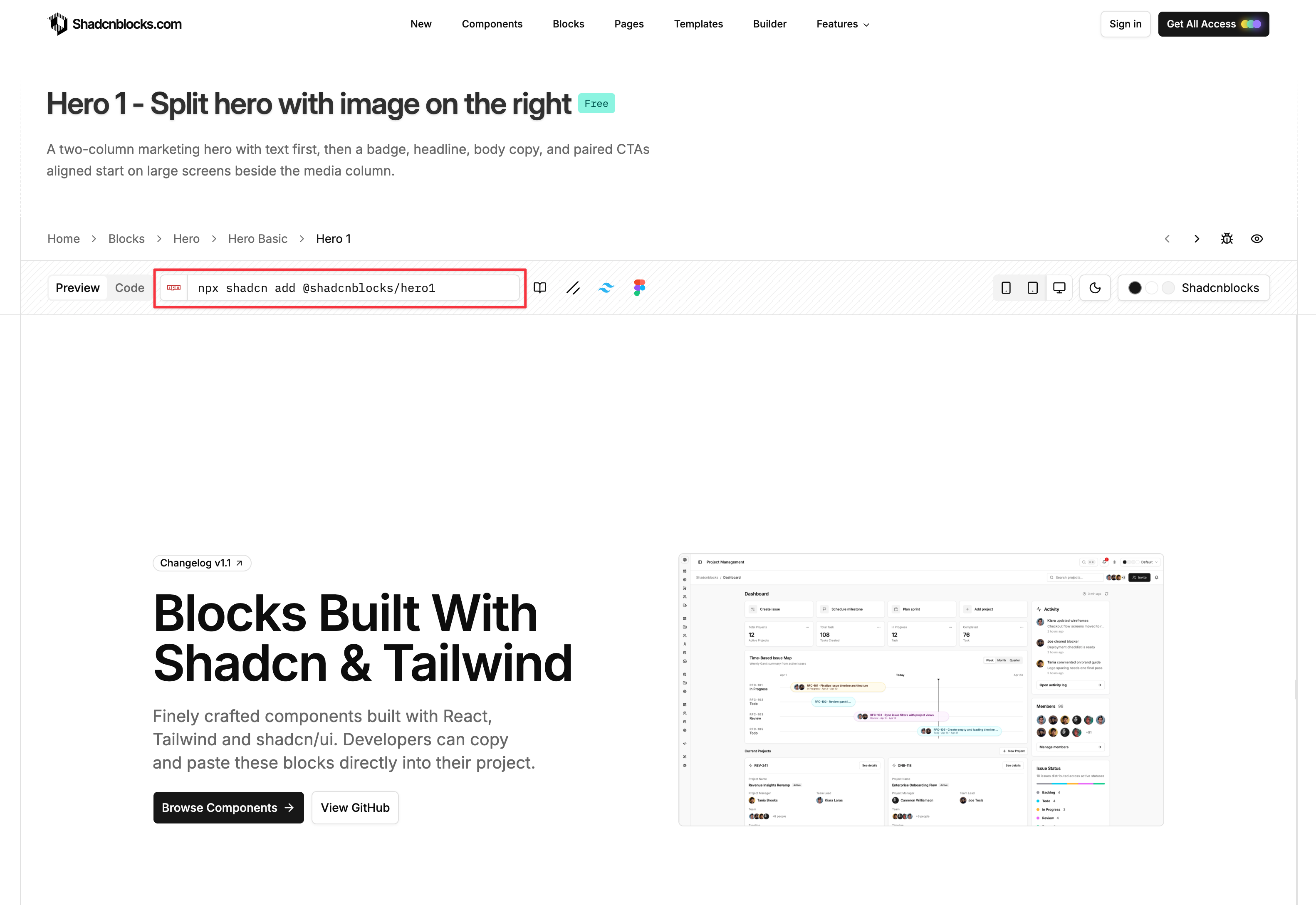
You can now install any block by browsing the Blocks library and running the shadcn install command from each block page.
Our blocks can be installed using the official Shadcn CLI shadcn:
npx shadcn add @shadcnblocks/hero1The command to install each block can be found in the toolbar on each block page.
Existing Projects
If you have an existing project you just need to make some small updates to your existing components.json and CSS.
1. Update to the latest shadcn components.json
Depending on how old your existing project is, we recommend updating the shadcn base configuration using the shadcn apply command. This will update any missing or old values in the components.json
You can use shadcn create to update an existing project.
2. Update the shadcnblocks theme
npx shadcn@latest add @shadcnblocks/theme/shadcnblocks2. Add the @shadcnblocks registry
Add the @shadcnblocks registry to your components.json.
{ "$schema": "https://ui.shadcn.com/schema.json", "style": "radix-nova", "rsc": true, "tsx": true, "tailwind": { "config": "", "css": "app/globals.css", "baseColor": "neutral", "cssVariables": true, "prefix": "" }, "iconLibrary": "lucide", "rtl": false, "aliases": { "components": "@/components", "utils": "@/lib/utils", "ui": "@/components/ui", "lib": "@/lib", "hooks": "@/hooks" }, "menuColor": "default", "menuAccent": "subtle", "registries": { "@shadcnblocks": "https://www.shadcnblocks.com/r/{style}/{name}" } }You can now install any block using the Shadcn CLI — see Installing Blocks below.
Installing Blocks
Browsing Blocks
The Blocks library is the easiest way to browse and install blocks:
- Browse blocks - Use filters and search to find blocks
- Preview blocks - Click any block to see it in detail
- Copy the CLI command - Click the command in the toolbar to copy it
- Run in your terminal - Paste and execute the command
Install with shadcn CLI
All Our blocks, components and pages can be installed using the official Shadcn CLI shadcn:
npx shadcn add @shadcnblocks/hero1Example, the above command will install the hero1 block:
The shadcn install command can be found in the toolbar on each block page.

Install with Copy & Paste
You can view and copy the source code directly by clicking the Code tab on any block. This lets you manually paste the code into your project.
Limitations of copy & paste:
- No automatic dependency installation - You’ll need to manually install any npm packages the block requires
- No component dependencies - If the block uses shadcn components (Button, Card, etc.), you’ll need to install those separately
For these reasons, we recommend using the Shadcn CLI for installation whenever possible.
Pro Blocks & API Authentication
To install Pro and Premium blocks via the CLI, you’ll need to set up API key authentication.
1. Get your API key
Visit your Dashboard → API Keys and create a new key.
2. Add to your environment
# .envSHADCNBLOCKS_API_KEY=sk_live_your_api_key_here3. Update the @shadcnblocks registry
Add or update the @shadcnblocks registry with authentication headers in your components.json
{ "$schema": "https://ui.shadcn.com/schema.json", "style": "radix-nova", "rsc": true, "tsx": true, "tailwind": { "config": "", "css": "app/globals.css", "baseColor": "neutral", "cssVariables": true, "prefix": "" }, "iconLibrary": "lucide", "rtl": false, "aliases": { "components": "@/components", "utils": "@/lib/utils", "ui": "@/components/ui", "lib": "@/lib", "hooks": "@/hooks" }, "menuColor": "default", "menuAccent": "subtle", "registries": { "@shadcnblocks": { "url": "https://www.shadcnblocks.com/r/{style}/{name}", "headers": { "Authorization": "Bearer ${SHADCNBLOCKS_API_KEY}" } } } }Now you can install any pro block:
npx shadcn add @shadcnblocks/hero125Next Steps
- Browse blocks - The classic blocks library
- Explorer - Advanced browsing with sidebar options
- Component examples - Individual component variations
- Templates - Full page templates
On This Page
- New Projects
- 1. Create your project
- 2. Add the @shadcnblocks registry
- 3. Install the shadcnblocks theme
- 4. Install blocks, components & pages
- Existing Projects
- 1. Update to the latest shadcn components.json
- 2. Update the shadcnblocks theme
- 2. Add the @shadcnblocks registry
- Installing Blocks
- Browsing Blocks
- Install with shadcn CLI
- Install with Copy & Paste
- Pro Blocks & API Authentication
- Next Steps