
Rob Austin - Sep 12, 2026
Copy Prompt for shadcn/ui Blocks: Paste Any Block into Cursor or Claude
Every shadcn/ui block and component on Shadcnblocks now has a Prompt tab in the toolbar, next to Preview and Code. Open it to copy a ready-to-paste prompt for Cursor, Claude Code, v0, or any coding assistant — shadcn CLI install steps plus the source for the library you selected.
Where to find Copy Prompt on shadcn blocks
Open any block or component detail page. The toolbar tabs are Preview, Code, and Prompt.
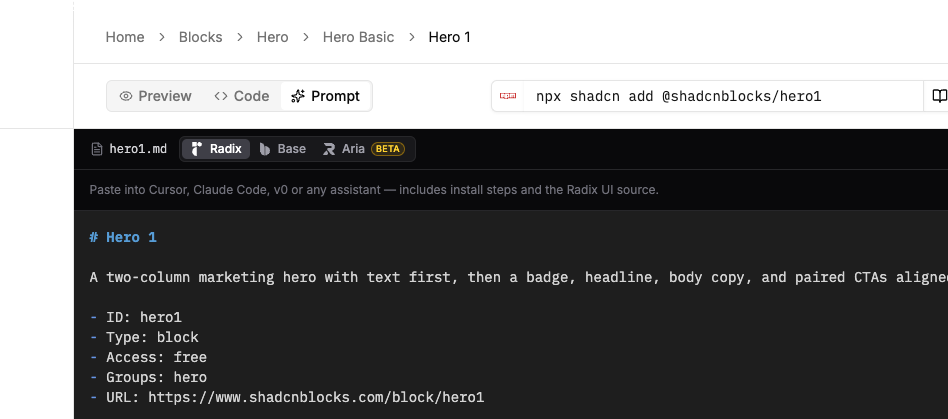
- Preview — live render, themes, viewport
- Code — the shadcn/ui source for the library and style you selected
- Prompt — the same source, wrapped as a self-contained instruction for an AI coding assistant
The Prompt tab follows the same access rules as Code. Free items are open. Paid items unlock with your plan.
What the prompt includes
The copied text is markdown. It is meant to be pasted as-is.
- Identity — name, id, type, groups, and the page URL
- Install with the shadcn CLI — the
@shadcnblocksregistry snippet forcomponents.json, then the exactnpx shadcn@latest addcommand - Install with an LLM (MCP) — how to init the official shadcn MCP server and ask the assistant to add the item
- Task — add this shadcn/ui block to the current project, prefer the CLI, fall back to writing the file if the CLI is unavailable, render the component, replace placeholder content, and leave the visual design alone
- Source — the full TSX for the primitive library currently selected in the preview (Radix UI, Base UI, or React Aria), with the matching
stylevalue forcomponents.json
The assistant gets enough to install the block the normal way, or to recreate it from source if it cannot reach the registry.
How to copy a shadcn/ui block into Cursor
1. Pick a block or component
Browse shadcn blocks or shadcn components and open the one you want. Switch the library if you need Base UI or React Aria instead of Radix. The prompt rebuilds for that library.
2. Open Prompt and copy
Click Prompt in the toolbar. Use the copy button, or download the markdown file. Cmd/Ctrl+A also selects the whole prompt.
3. Paste it into the assistant
Drop it into Cursor, Claude Code, v0, ChatGPT, or Claude. A typical follow-up is:
Install this shadcn/ui block into the current project and put it on the landing page.
If the shadcn CLI is set up, the model should run the install command. If it is not, it has the source and the task instructions.
The Prompt view also has ChatGPT and Claude links. Those open a new chat with the install-only markdown (URLs cannot hold the full source). For the complete prompt, copy from the tab.
Copy Prompt vs the shadcn CLI and MCP
Use the shadcn CLI when you already know the id and the project has the registry configured.
Use Shadcn MCP when you want the assistant to search the registry (“add a pricing section”) and install a match.
Use Copy Prompt when the assistant needs the exact shadcn/ui block in front of you, including the source, and may not have registry or MCP access. It is the offline-friendly version of “add this block.”
You can mix them. Copy a prompt to get the files into a chat. Keep MCP for the next section you have not picked yet.
Radix, Base UI, and shadcn styles
The prompt is not a generic dump of the Radix file. It follows the same preview controls as Code:
- Library — Radix UI, Base UI, or React Aria
- Style — Vega, Nova, Maia, Lyra, Mira, Luma, Sera, or Rhea
The task section tells the assistant which style to set in components.json so a CLI install matches the source in the prompt. If you switched to Base UI before copying, you get the Base UI build and a base-* style hint.
Try it on a free shadcn block
- Open a free block such as Hero 1
- Click Prompt next to Preview and Code
- Copy the prompt and paste it into Cursor or Claude Code
The same tab is on every shadcn component example and every page, not only marketing blocks.
Browse shadcn blocks · Browse shadcn components · Shadcn MCP · Changelog
— Rob