
Rob Austin - Sep 2, 2026
Introducing Collections
Picking a block is easy. Shipping a page usually means picking ten of them — a hero, a feature grid, pricing, a footer — then installing each one by hand. Collections are for that second part: bookmark the pieces as you browse, keep them in one named set, and install the set with a single shadcn command.
Open My Collections to create a set, or start from any block, component, or page and use the bookmark control.
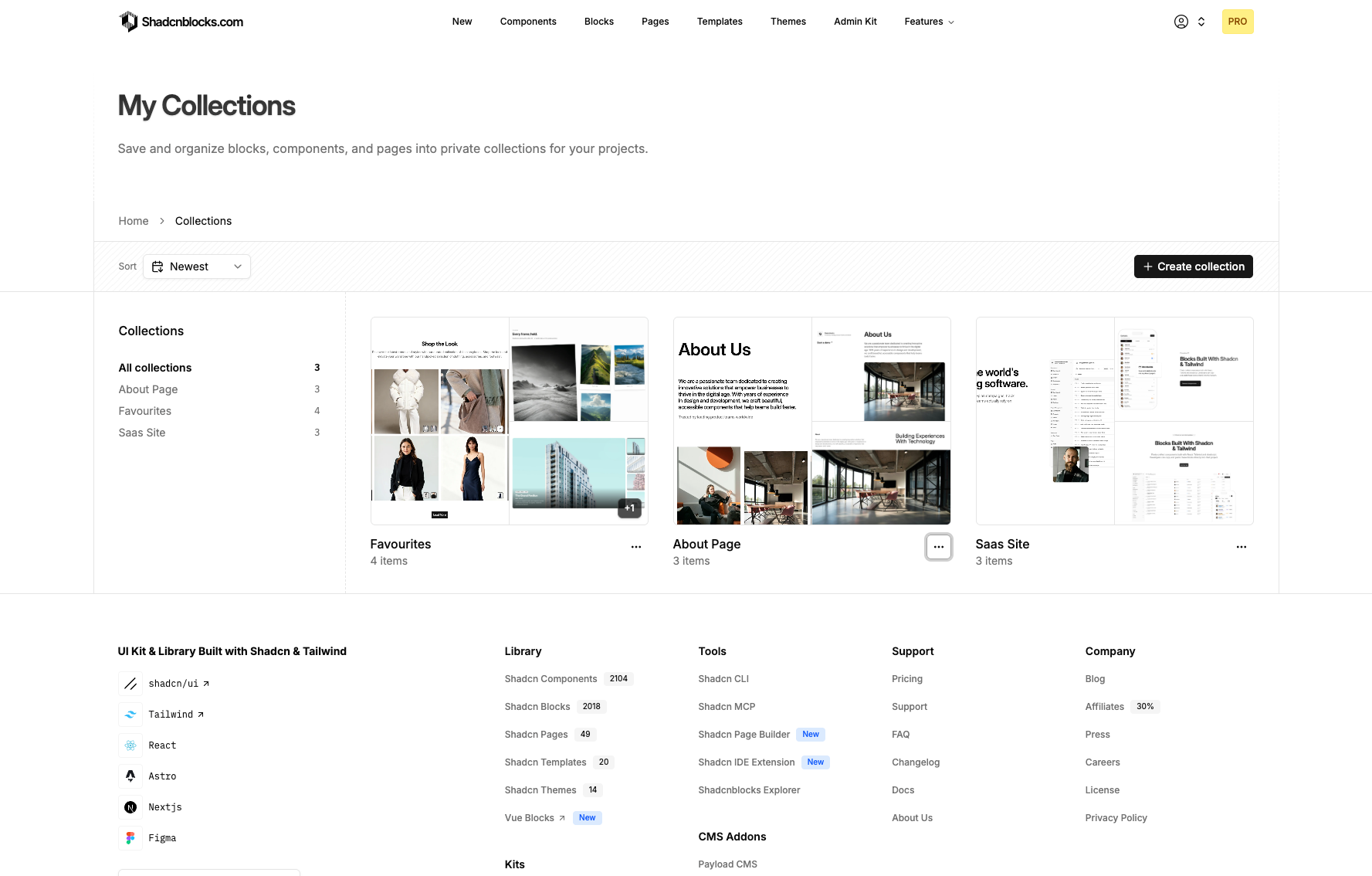
What you can do
- Create collections — Give a collection a name and an optional description. Edit or delete it later from My Collections.
- Save as you browse — The bookmark control on any block, component, or page detail view adds or removes that item from a collection. You can create a new collection from the same popover.
- Mix types — A collection is not limited to one catalog. Keep blocks, components, and pages in the same list.
- Install with the CLI — Open a collection and copy one shadcn command. It installs every item you have access to.
npx shadcn add @shadcnblocks/hero1 @shadcnblocks/feature12 @shadcnblocks/page/pricing5The command follows the same registry workflow you already use for a single block. Pick npm, pnpm, yarn, or bun from the collection page — the copied command matches your package manager.
Where to start
- Sign in and open My Collections.
- Create a collection — something like “SaaS landing” or “Checkout”.
- Browse blocks, components, or pages and bookmark items into that collection.
- Open the collection and copy the shadcn command into your project.
You can also start from a detail page. Bookmark first, name the collection when the popover asks, and keep adding as you scan the library.
Collections are live now. Create your first one and install a full set in one pass.
— Rob