Rob Austin - Apr 27, 2026
Introducing the Shadcn Page Builder
We’ve been building blocks for a while now — heroes, pricing sections, feature grids, footers, the works. But blocks on their own are only half the story. The real work starts when you need to stitch them together into a coherent page: pick the right hero, find a features section that pairs well with it, decide on spacing, check that the visual rhythm holds up across the full scroll. That’s the part that always takes longer than you expect.
Try the Shadcn Page Builder live.
What It Does
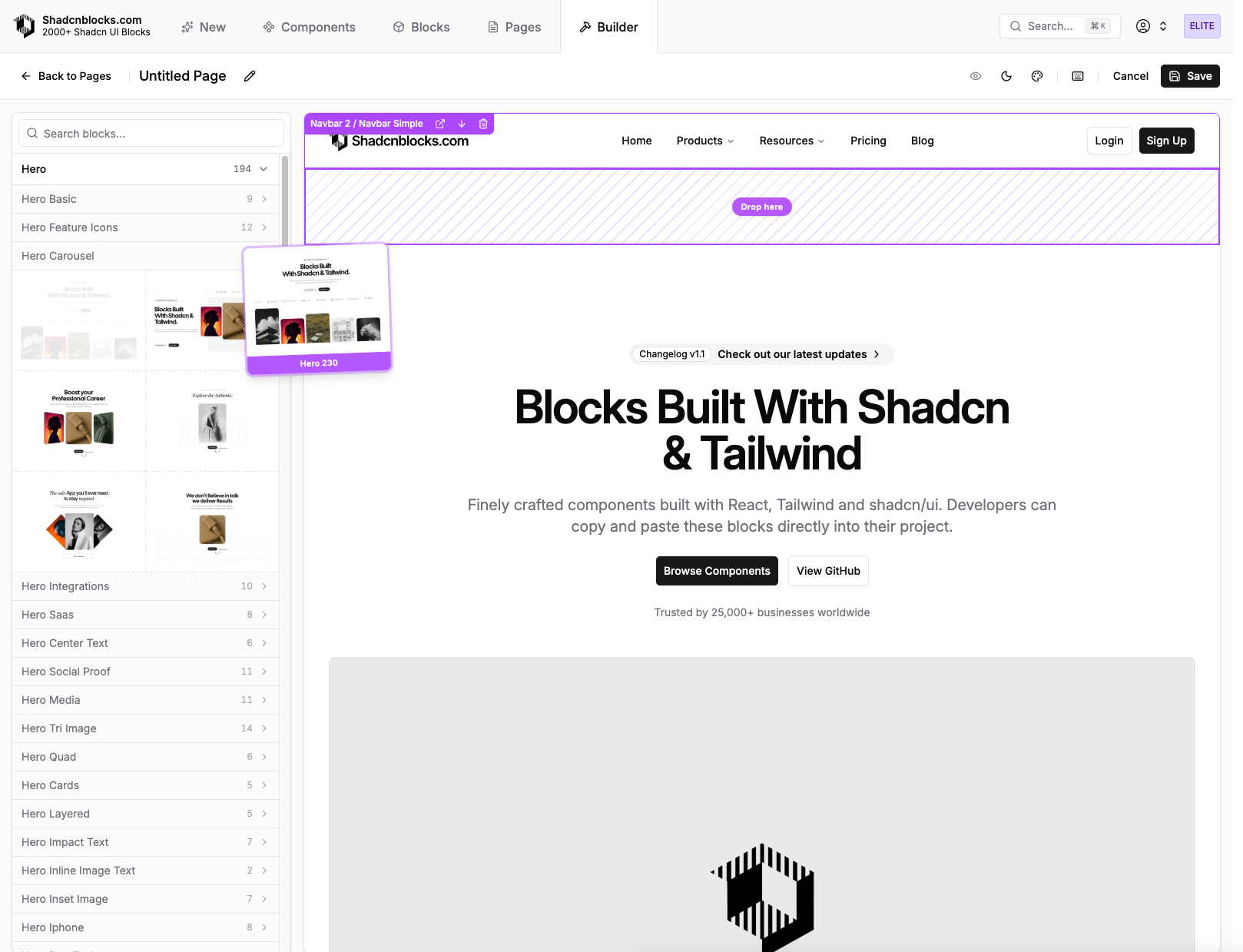
The page builder lets you compose full pages from our block library, visually. You start with a blank canvas (or one of our 30+ pre-built page templates), drag blocks in from the sidebar, reorder them, swap variants, apply a theme, and preview the result — all in one place.
When you’re happy with the page, you save it and get a unique shadcn registry URL you can install with a single command:
npx shadcn add @shadcnblocks/page/123XYZThat pulls down the full page and every block it depends on. No copy-pasting, no manually wiring things together.
Your saved pages are available in your profile, and can be installed anytime, or edited, duplicated, and updated.
The Sidebar
The left panel shows every block in the library, organized by group — hero, feature, pricing, CTA, footer, testimonial, FAQ, and so on. Each group expands into subgroups with thumbnail previews, so you can visually scan dozens of options without leaving the builder.
There’s a search bar at the top. Type “hero” or “pricing” or “ecommerce” and the list filters instantly. When you find a block you like, either click it to replace the currently selected section, or drag it onto the canvas to insert it at a specific position.
Drag and Drop
The canvas supports full drag-and-drop reordering powered by dnd-kit. Grab any section and drag it to a new position — you’ll see a drop indicator showing exactly where it’ll land. You can also drag blocks directly from the sidebar onto the canvas to insert them at a precise location rather than always appending to the end.
Each section on the canvas shows a toolbar when selected: move up, move down, delete, and a link to open the block’s detail page in a new tab. It’s the kind of thing that sounds minor but saves a lot of back-and-forth when you’re assembling a page.
Keyboard Shortcuts
The builder is designed to be fast. Beyond drag-and-drop, there’s a full set of keyboard shortcuts for people who prefer to stay on the keyboard:
- Left / Right — cycle through block variants within the current subgroup
- Shift+Left / Shift+Right — jump between subgroups
- Space — shuffle to a random block in the current subgroup
- Shift+Space — shuffle within the full group
- P — cycle section padding (none, compact, normal, spacious)
- B — cycle section borders (none, top+bottom, top only, bottom only)
- Backspace / Delete — remove the selected section
- Cmd+Z / Cmd+Shift+Z — undo and redo
- \ (hold) — temporarily hide section outlines for a clean preview
- Escape — cancel changes and revert
This means you can build a page almost entirely from the keyboard: arrow through hero variants until you find one you like, hit down to move to the next section, space through some feature blocks, adjust padding with P, and keep going.
Theming
The builder includes a theme picker in the toolbar. We support a growing library of themes — you can preview your page in any of them and the change is applied live, scoped only to the builder canvas. Dark mode is supported too, toggled independently so you can check both light and dark appearances while editing.
Themes work by injecting scoped CSS variables into the preview container, so your blocks render with the theme’s colors, radii, and typography without affecting the rest of the app. When you save, the theme choice is persisted with the page.
Pre-Built Page Templates
You don’t have to start from scratch. We’ve shipped over 30 page templates covering the most common patterns:
- Landing pages — hero + features + pricing + CTA + footer, in several styles
- About pages — team sections, company values, timelines
- Pricing pages — comparison tables, tier cards, FAQs
- Blog pages — post listings, featured articles, newsletter signups
- Contact pages — forms, maps, office locations
- Product pages — detail layouts for SaaS and ecommerce
- FAQ pages, changelog pages, integrations pages, and more
Each template is a starting point. Open it in the builder, swap out any section, change the theme, adjust spacing, and save it as your own.
Save and Install
Pages are saved to your profile and accessible from the pages explorer. Each saved page gets a unique short ID and a registry URL you can install anytime:
npx shadcn add @shadcnblocks/page/123XYZThis installs the page along with all its block dependencies and their shadcn/ui component dependencies. You get a working page in your project with a single command — same workflow you already know from installing individual blocks.
Your saved pages aren’t static snapshots. You can come back to the builder, edit them, duplicate them with “Save As” to fork a variation, and update them whenever you want. The registry URL stays the same, so you can always re-install the latest version.
The page builder is available now for all Shadcnblocks users. Try it out — start from a template or build something from scratch.
— Rob